Time Tracking
Record, manage, and monitor the time spent on different activities for clients or internal work. Accurate time tracking ensures transparent billing and improved productivity.
Track Time Using Start Timer (Real-Time)
Capture billable time exactly as you work
Track Time Using Start Timer (Real-Time)
Use the real-time timer to capture every minute spent on client work. The feature supports both billable and non-billable hours for accurate firm-wide tracking.
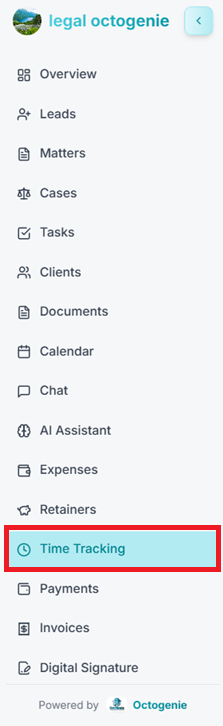
Navigate to Time Tracking
Log in to the OctoGenie portal and click on 'Time Tracking' from the left-side menu. The dashboard will show Total Hours, Billable/Non-Billable hours, and a Weekly Overview.
Opens in a new tab • partner.octogenie.com/
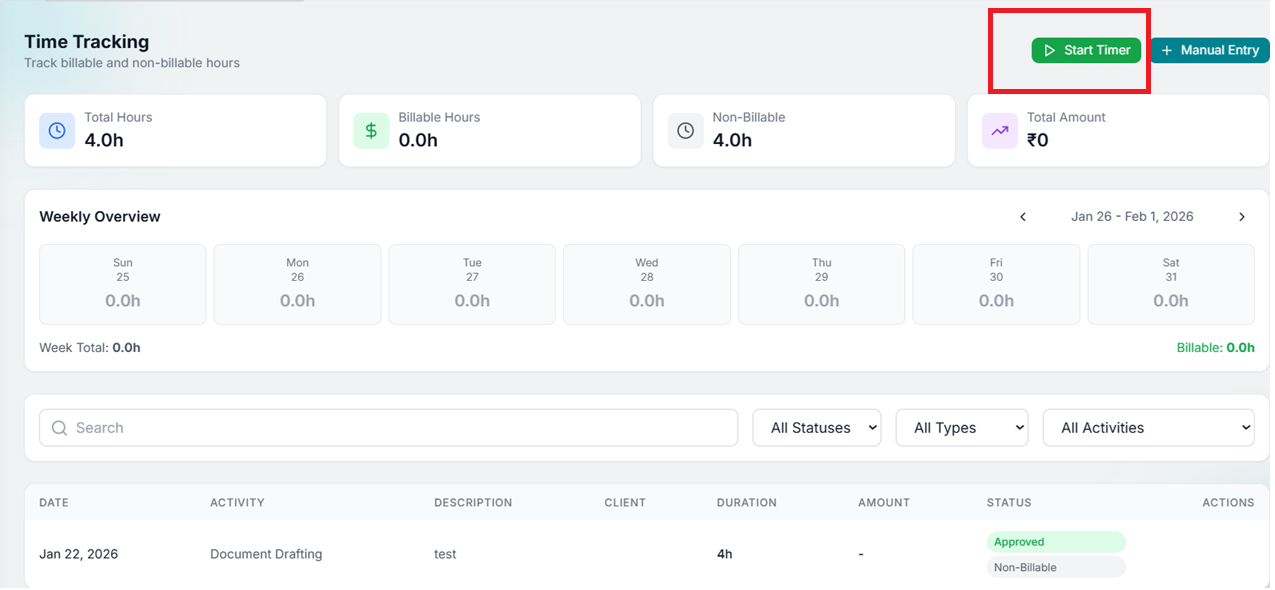
Start the Timer
Click on the 'Start Timer' button located at the top right of the dashboard.
Opens in a new tab • partner.octogenie.com/time-tracking
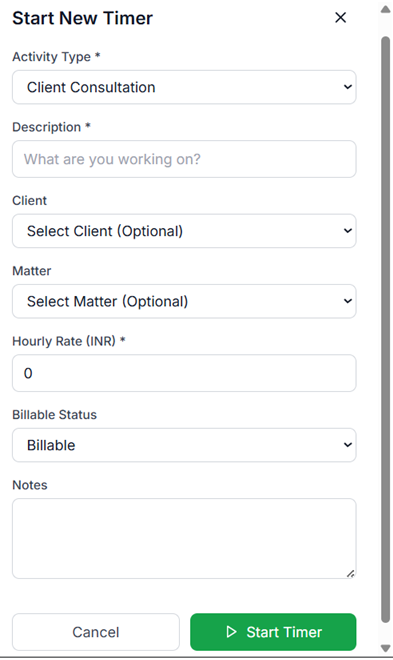
Provide Activity Details
Select the Activity Type (e.g., Client Consultation, Court Appearance, Document Drafting). Link to a Client or Matter if applicable, and toggle the Billable/Non-Billable option.
Opens in a new tab • partner.octogenie.com/clients
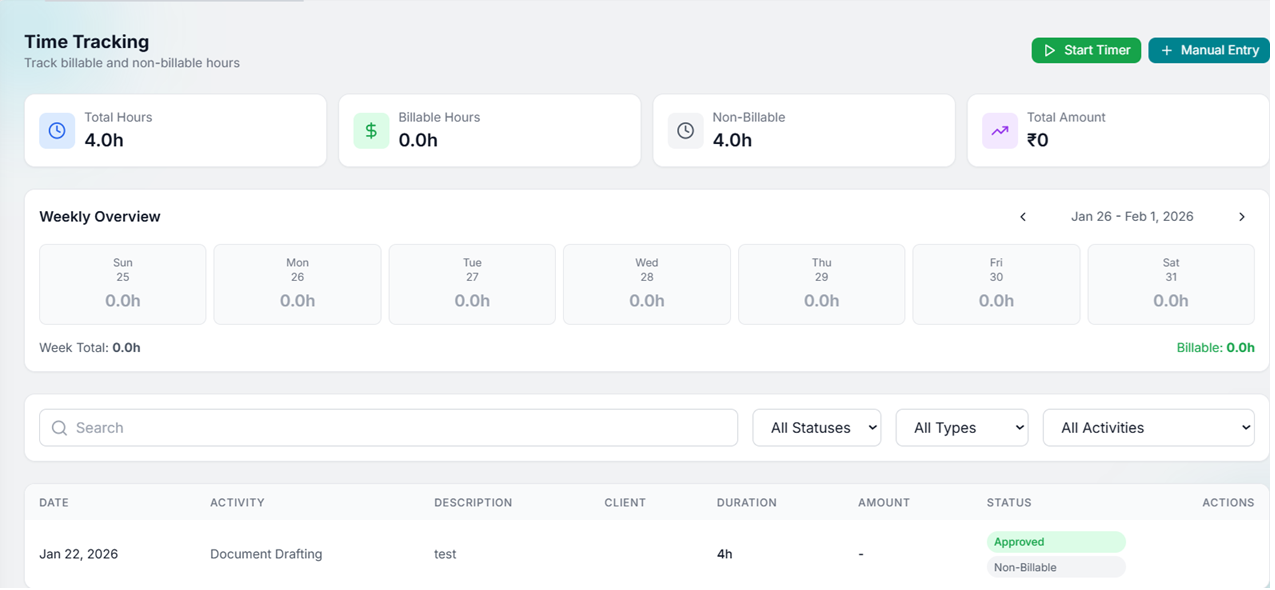
Begin Tracking
Click 'Start Timer' to begin recording. The timer will run in the background as you perform your legal work.
Opens in a new tab • partner.octogenie.com/time-tracking
Stop and Save
Once the task is completed, click 'Stop Timer'. The time entry will be automatically saved and reflected in your Total Hours and Weekly Overview.
Opens in a new tab • partner.octogenie.com/tasks
Expected Outcome
Precise, real-time billable records are logged without manual guesswork.
Track Time Using Manual Entry
Log hours after work completion
Track Time Using Manual Entry
Manually record time for past legal work or activities. This ensures all hours are accounted for, whether they are billable to a client or internal work.
Access Manual Entry
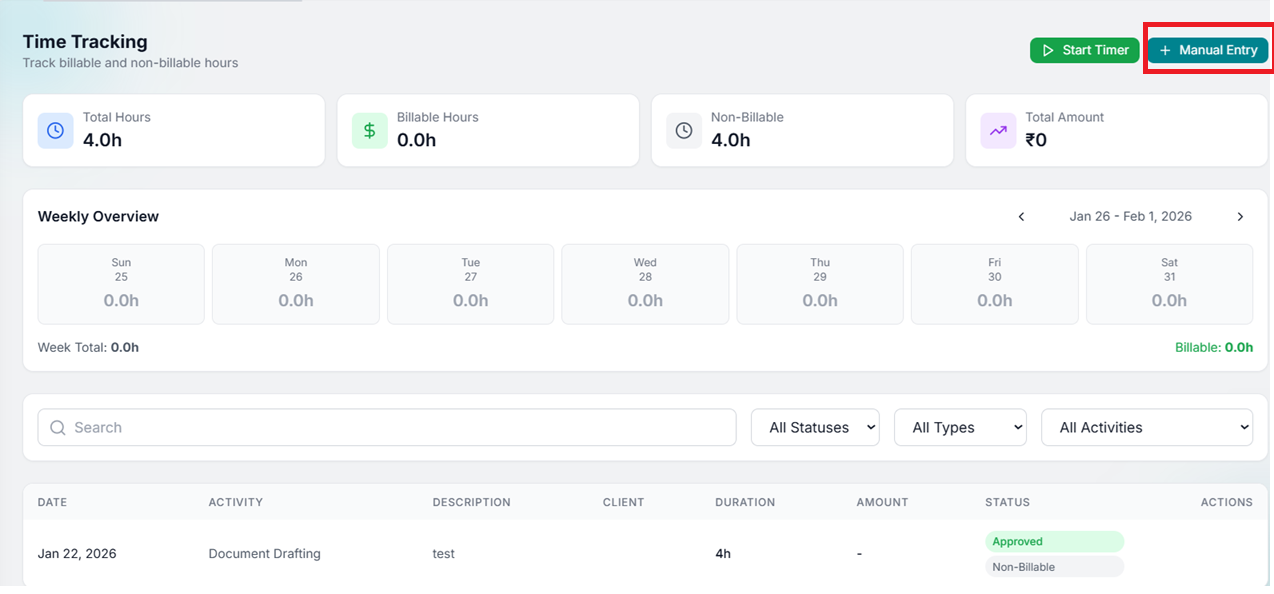
Click on the '+ Manual Entry' button in the top right of the Time Tracking dashboard.
Opens in a new tab • partner.octogenie.com/time-tracking/new
.png&w=3840&q=75)
Enter Time Details
Fill in the required details: Date, Activity, Client (if applicable), Duration (hours/minutes), Billable/Non-Billable status, and an optional Description.
Opens in a new tab • partner.octogenie.com/clients
Save the Entry
Review your inputs and click 'Save'.
Opens in a new tab • partner.octogenie.com/time-tracking
Verify Log
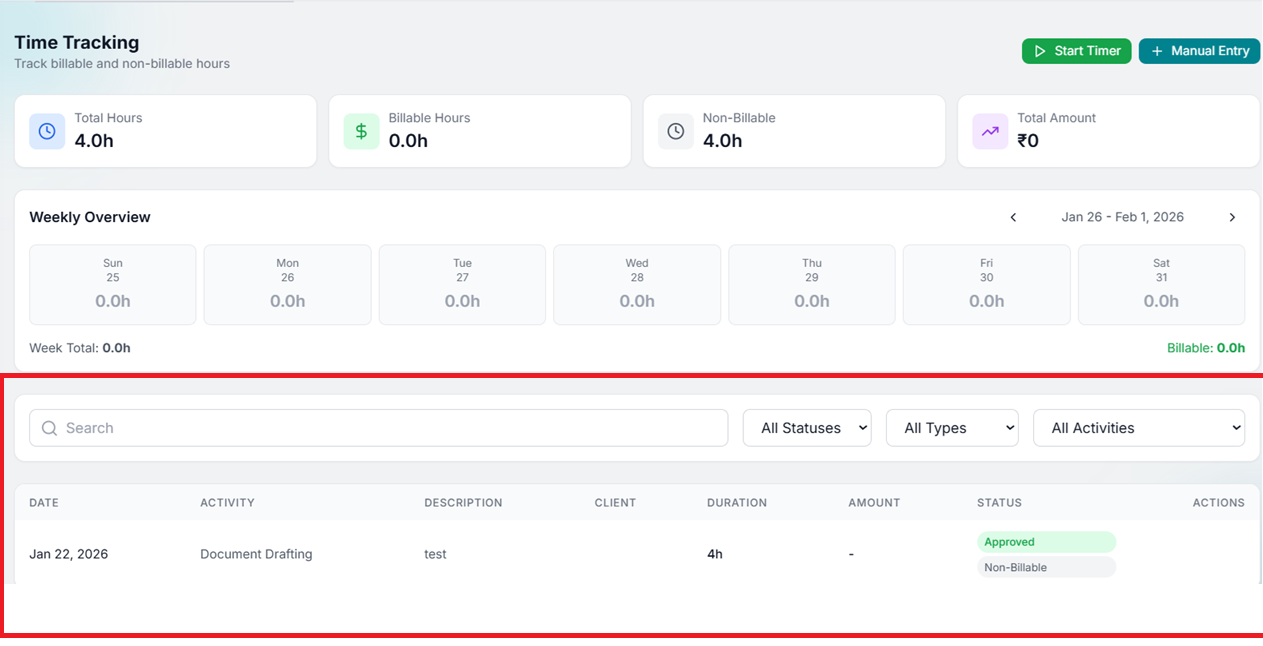
The entry will appear in the time log list with its current status. Ensure all details correctly represent the work performed.
Opens in a new tab • partner.octogenie.com/time-tracking
Expected Outcome
Past work hours are accurately recorded for billing and reporting.
Reviewing and Monitoring Time Logs
Analyze productivity and billing readiness
Reviewing and Monitoring Time Logs
Use the dashboard and logs to review weekly progress and ensure accurate data for invoicing.
Monitor Weekly Summary
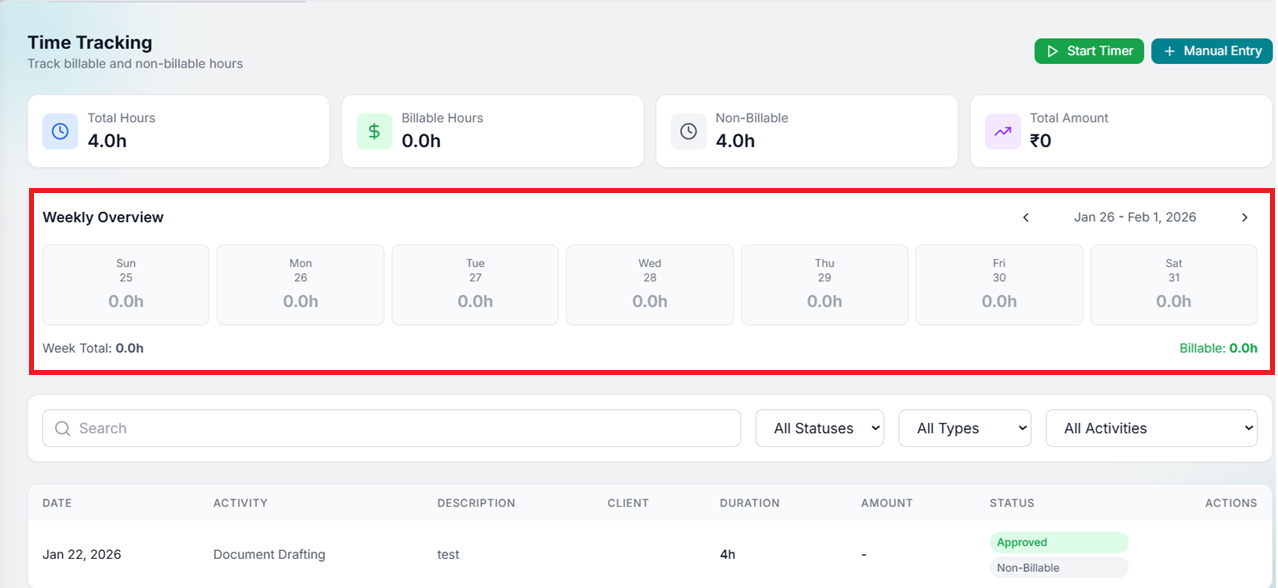
Refer to the 'Weekly Overview' section to view hours logged per day, Week Total, and Billable hours summary.
Opens in a new tab • partner.octogenie.com/time-tracking
Review Time Table
Scroll down to view the Time Entries Table. Check columns like Date, Activity, Description, Client, Duration, and Status.
Opens in a new tab • partner.octogenie.com/clients

Use Filter and Search
Find specific entries using Statuses (Approved, Rejected, etc.), Types, or Activities filters.
Opens in a new tab • partner.octogenie.com/time-tracking
Check Approval Status
Each entry has a status (e.g., Approved, Rejected, Non-Billable). Ensure accountability and review before final billing.
Opens in a new tab • partner.octogenie.com/time-tracking
Expected Outcome
Reliable time data is ready for invoicing and firm-wide productivity analysis.
Consolidated Time Overview
Accurately tracking hours ensures transparent billing, better time management, and reliable data for internal reporting.