Leads
The Leads feature helps you manage potential clients from initial enquiry until they are converted into actual clients. Track lead details, status, value, and assignment in one place.
What is the Lead Feature?
A lead is a potential client who has shown interest in your legal services but hasn't yet become an official client. The Leads module helps you:
Best Practice
Respond to new leads within 24 hours to maximize conversion rates. Use the status feature to track your follow-ups.
How to Add a New Lead
Create and record a new potential client in the system
Adding a New Lead
Create and record a new potential client (lead) in the system for tracking and follow-up.
Login
Log in to the OctoGenie Portal using your credentials.
Opens in a new tab • partner.octogenie.com/
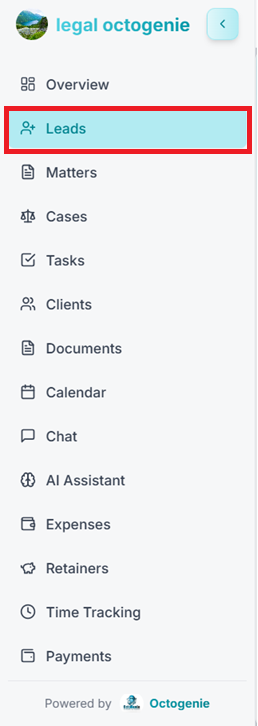
Go to Leads Section
From the left-side menu, click on Leads. The Leads Dashboard will open showing All Leads.
Opens in a new tab • partner.octogenie.com/leads
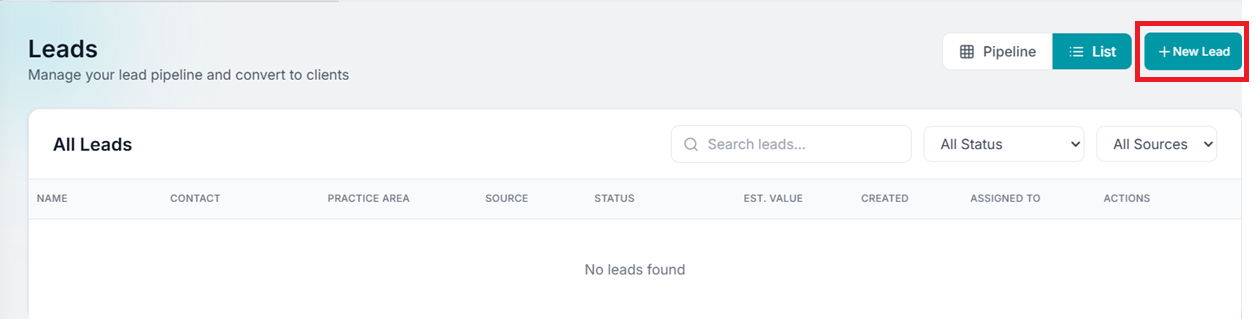
Click New Lead
On the top-right corner, click + New Lead button.
Opens in a new tab • partner.octogenie.com/leads/new
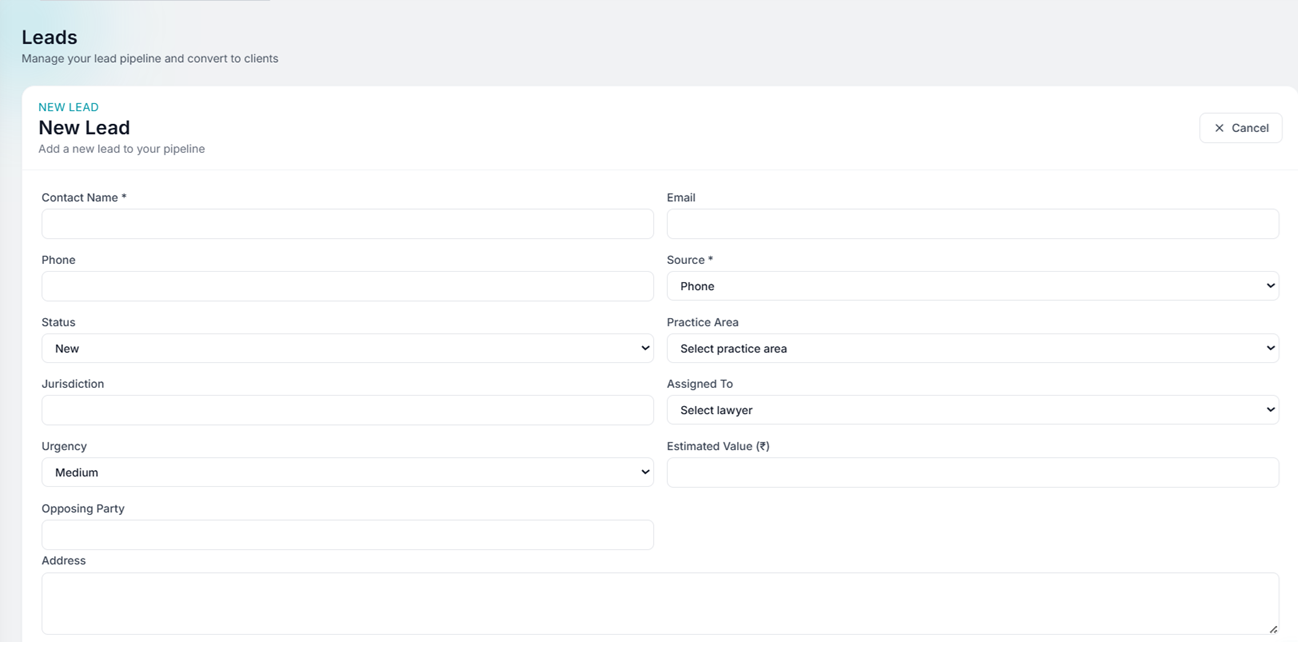
Enter Lead Details
Fill in the required information: Lead Name, Contact Details (phone/email), Practice Area (type of service required), Source (where the lead came from), Estimated Value, and Assign To.
Opens in a new tab • partner.octogenie.com/leads
Save the Lead
After entering all details, click 'Create Lead'.
Opens in a new tab • partner.octogenie.com/leads
Search and Filter Leads
Quickly find specific leads in your pipeline
The Search and Filter options help you quickly find specific leads based on name, status, or source, making lead management easier and faster.
Searching and Filtering Leads
Quickly find specific leads based on name, status, or source.
Access Search & Filter
On the All Leads page, the Search bar and Filter dropdowns are available at the top of the list.
Opens in a new tab • partner.octogenie.com/leads
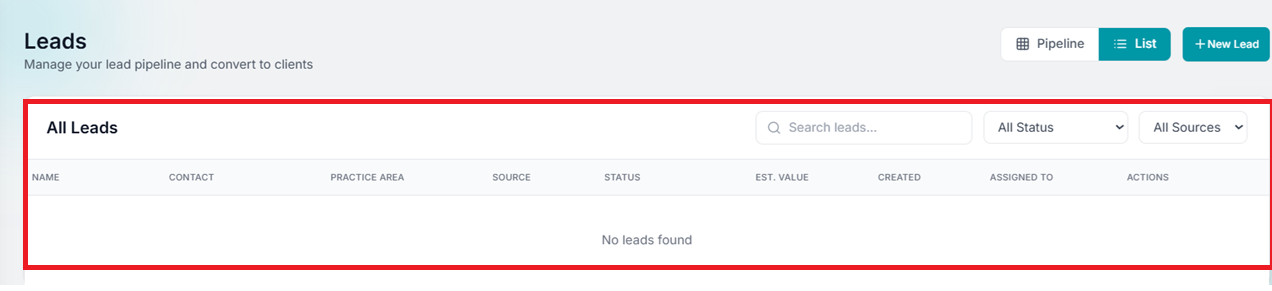
Using the Search Option
Locate the Search leads… bar and type Lead Name or Contact details. Matching leads display instantly.
Opens in a new tab • partner.octogenie.com/leads
Using the Filter Options
Use the 'All Status' dropdown to select lead stages (e.g., New, In Progress) or 'All Sources' dropdown (e.g., Website, Referral). You can combine Search and Filters.
Opens in a new tab • partner.octogenie.com/leads
Expected Outcome
Locate leads quickly, track progress stages, and analyze sources with ease.
Converting Lead to Client
Turn qualified leads into official clients
Once a lead confirms they want to proceed with your services, you can convert them to a client with just a few clicks.
Converting Lead to Client
Learn how to turn qualified leads into official clients.
Open Lead Profile
Click on the lead you wish to convert from the All Leads list.
Opens in a new tab • partner.octogenie.com/leads
Convert to Client
Leads can be converted into clients by connecting with them and clicking the conversion option. This migrates relevant data to the Clients module.
Opens in a new tab • partner.octogenie.com/leads
Calendar Integrated in Lead Module
Schedule, manage, and track consultations directly from a lead
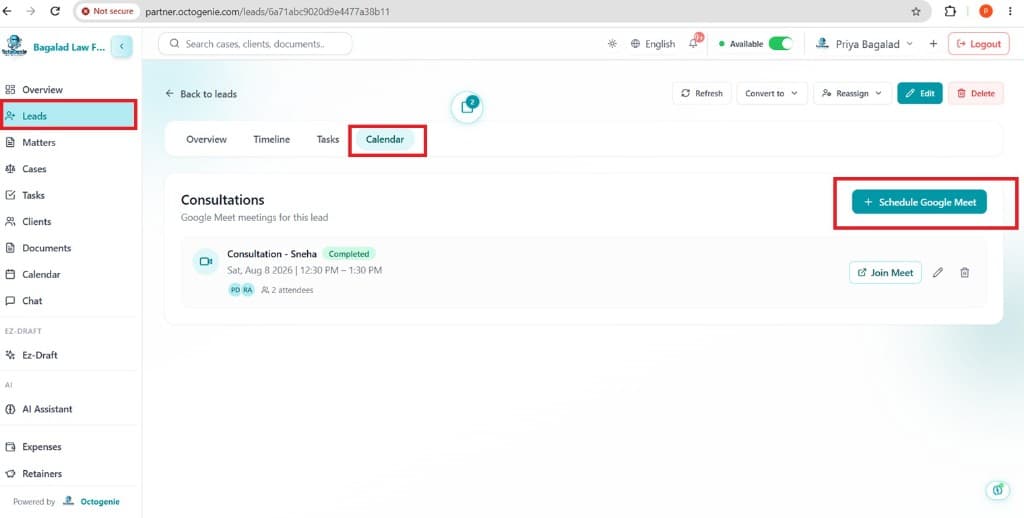
The Calendar tab in the Lead module allows users to schedule, manage, and track consultations with prospective clients. It provides a centralized view of all meetings associated with a lead and integrates with Google Meet for seamless virtual consultations.
Key Features
- Schedule consultations directly from the lead record.
- Generate a Google Meet link automatically.
- Invite internal team members and external participants.
- View upcoming and completed consultations.
- Edit or delete scheduled meetings.
- Join meetings directly from the platform.
- Track meeting status and attendee details.
Calendar Integrated in Lead Module
Use the Calendar tab inside a lead to schedule consultations, generate Google Meet links, and manage upcoming meetings from one place.
Open the Lead and Calendar Tab
Open the required lead and navigate to the Calendar tab to view consultations linked to that lead.
Opens in a new tab • partner.octogenie.com/leads
Click Schedule Google Meet
Click the Schedule Google Meet button to create a new consultation directly from the lead record.
Opens in a new tab • partner.octogenie.com/leads
Enter Consultation Details
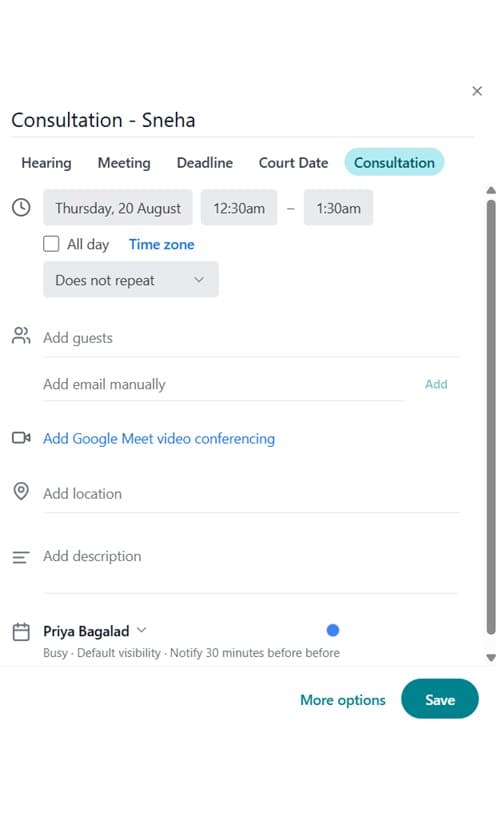
Enter the meeting title, date, start and end time, and add participants or attendees for the consultation.
Opens in a new tab • partner.octogenie.com/ai-assistant
Pro Tip
- Use a clear meeting title so the consultation is easy to identify later.
- Double-check the time zone and attendees before saving.
Save the Consultation
Click Save to create the consultation. The meeting is added to the Calendar tab, a Google Meet link is generated, and invites are shared by email.
Opens in a new tab • partner.octogenie.com/calendar
Manage Scheduled Consultations
Use the consultation card to join the meeting, edit the schedule, delete it if needed, and review the meeting status and attendee details.
Opens in a new tab • partner.octogenie.com/leads
Managing Consultations
- Join Meet to launch the Google Meet session.
- Edit to modify the meeting details.
- Delete to remove a consultation that is no longer required.
- View Status to check whether the consultation is Scheduled, Completed, or Cancelled.
Meeting Information Displayed
- Meeting Title
- Date
- Start and End Time
- Meeting Status
- Number of Attendees