Settings & Admin
Manage your account, profile details, organization information, security, users, roles, and system preferences.
What is the Settings section used for?
The Settings section is used to manage your account, profile details, organization information, security, users, roles, system preferences, and other platform configurations.
How to Navigate to Settings
Access the Settings section
Accessing Platform Settings
The Settings section is the central configuration suite used to manage your account, profile details, security, roles, approvals, and system preferences.
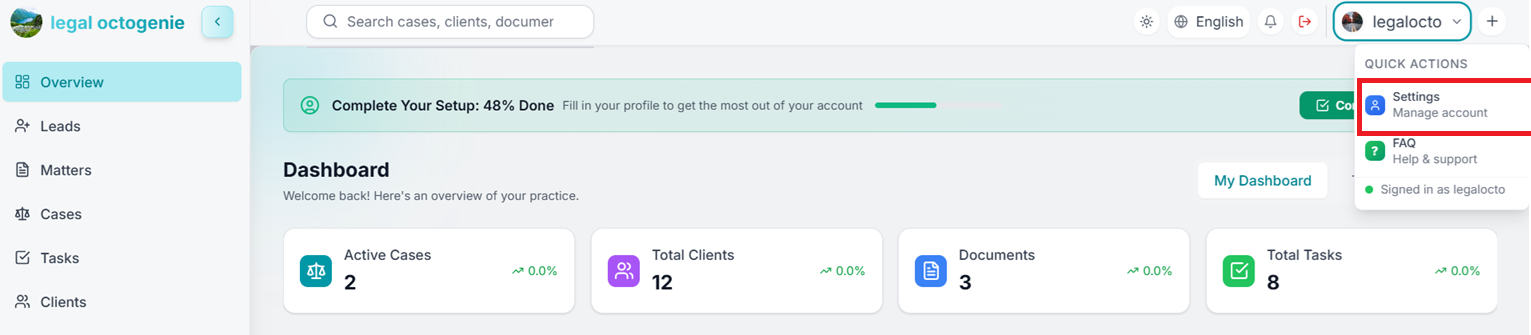
Login and Dashboard
Login to the OctoGenie Partner Portal. Go to the top-right corner of your dashboard.
Opens in a new tab • partner.octogenie.com/
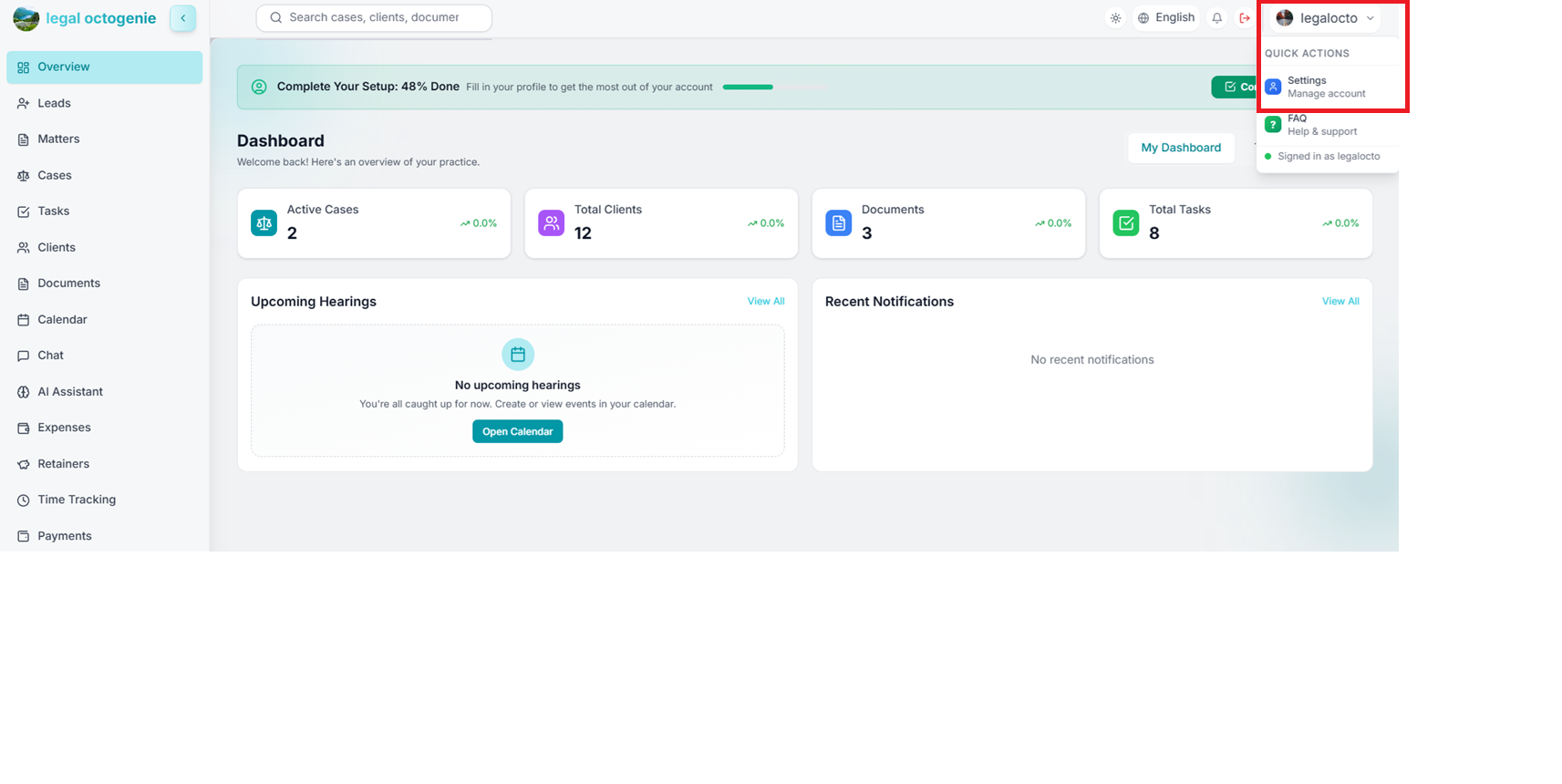
Open Account Menu
Click on your Profile / Account icon to see the quick actions dropdown.
Opens in a new tab • partner.octogenie.com/settings
Select Settings
From the dropdown menu, select 'Settings'.
Opens in a new tab • partner.octogenie.com/settings

Review Options
The Settings page will open with options like Account, Security, Users & Roles, Approvals, and more.
Opens in a new tab • partner.octogenie.com/settings/roles
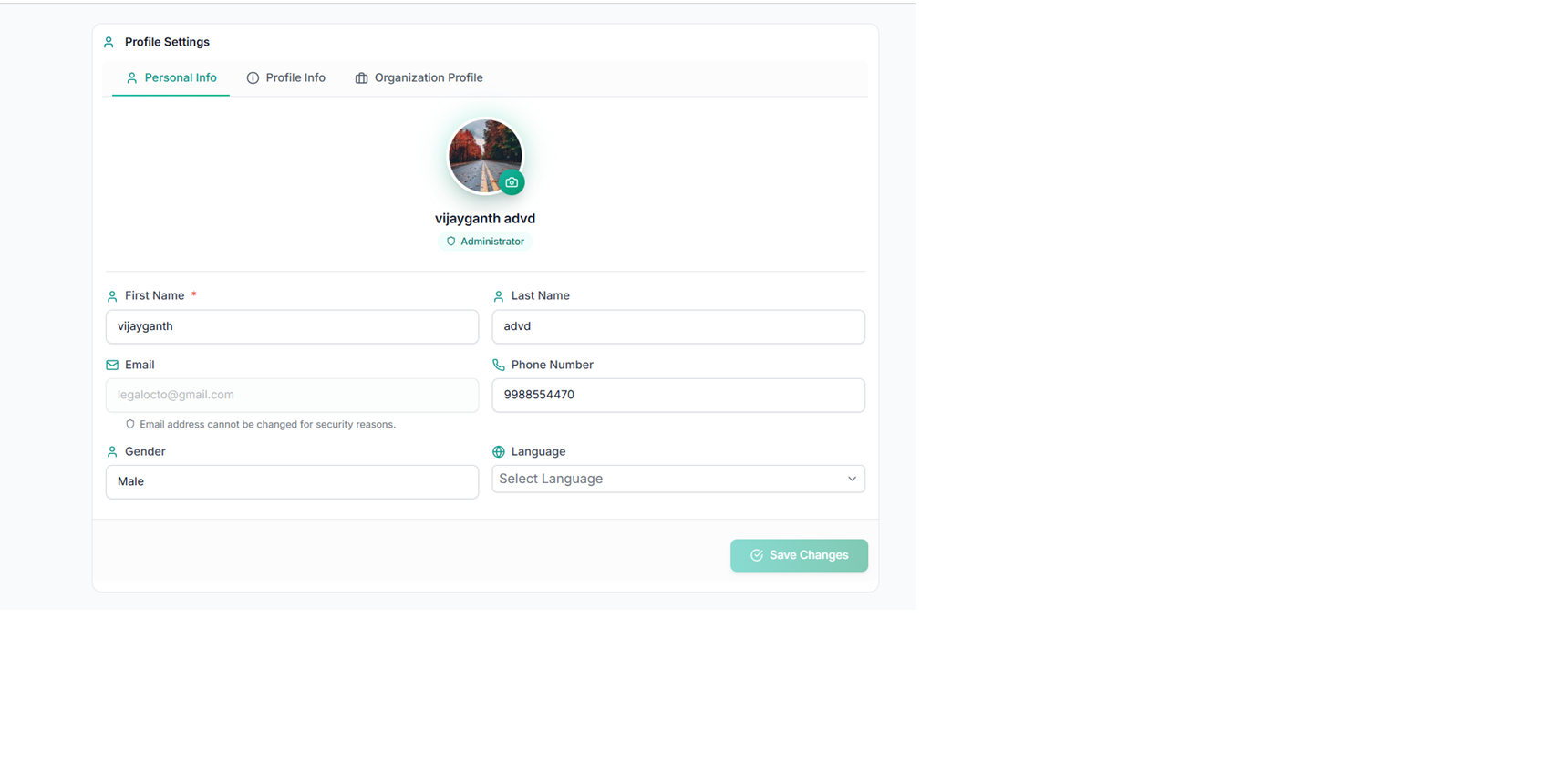
Navigate to Sub-sections
Use the left-side settings menu to switch between different configuration areas.
Opens in a new tab • partner.octogenie.com/settings
Expected Outcome
You are now in the central configuration suite for your firm.
You're all set!
You can now access all settings options to manage your account and system preferences.
How to Manage Users & Roles
Add and manage users in your organization
Managing Users & Roles
Add new team members, manage existing users, and assign appropriate roles.

Open Users & Roles
From the Settings sidebar, click on 'Users & Roles'.
Opens in a new tab • partner.octogenie.com/settings/users
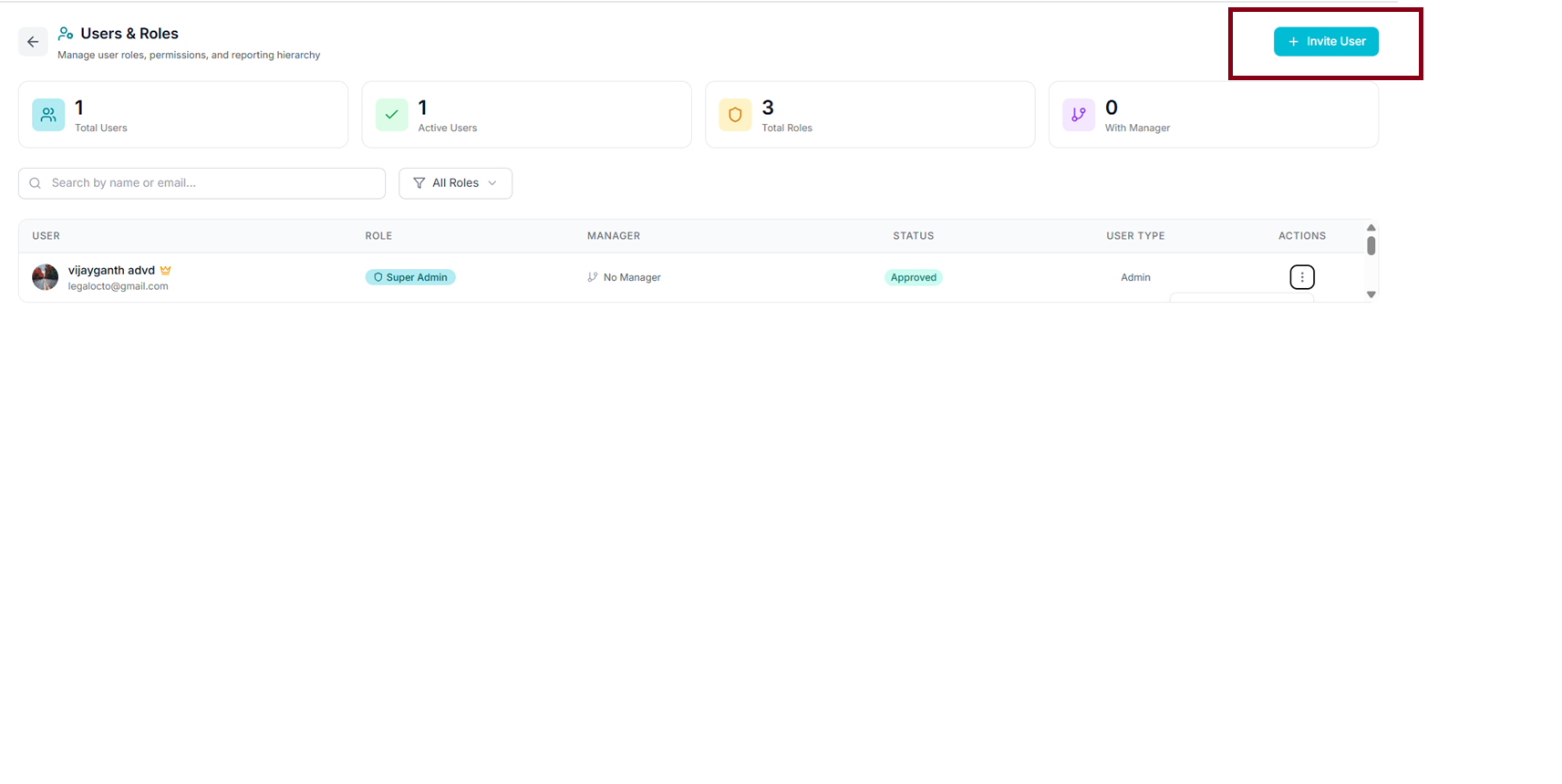
Invite New User
Click on the 'Invite User' button located at the top-right corner of the page.
Opens in a new tab • partner.octogenie.com/settings
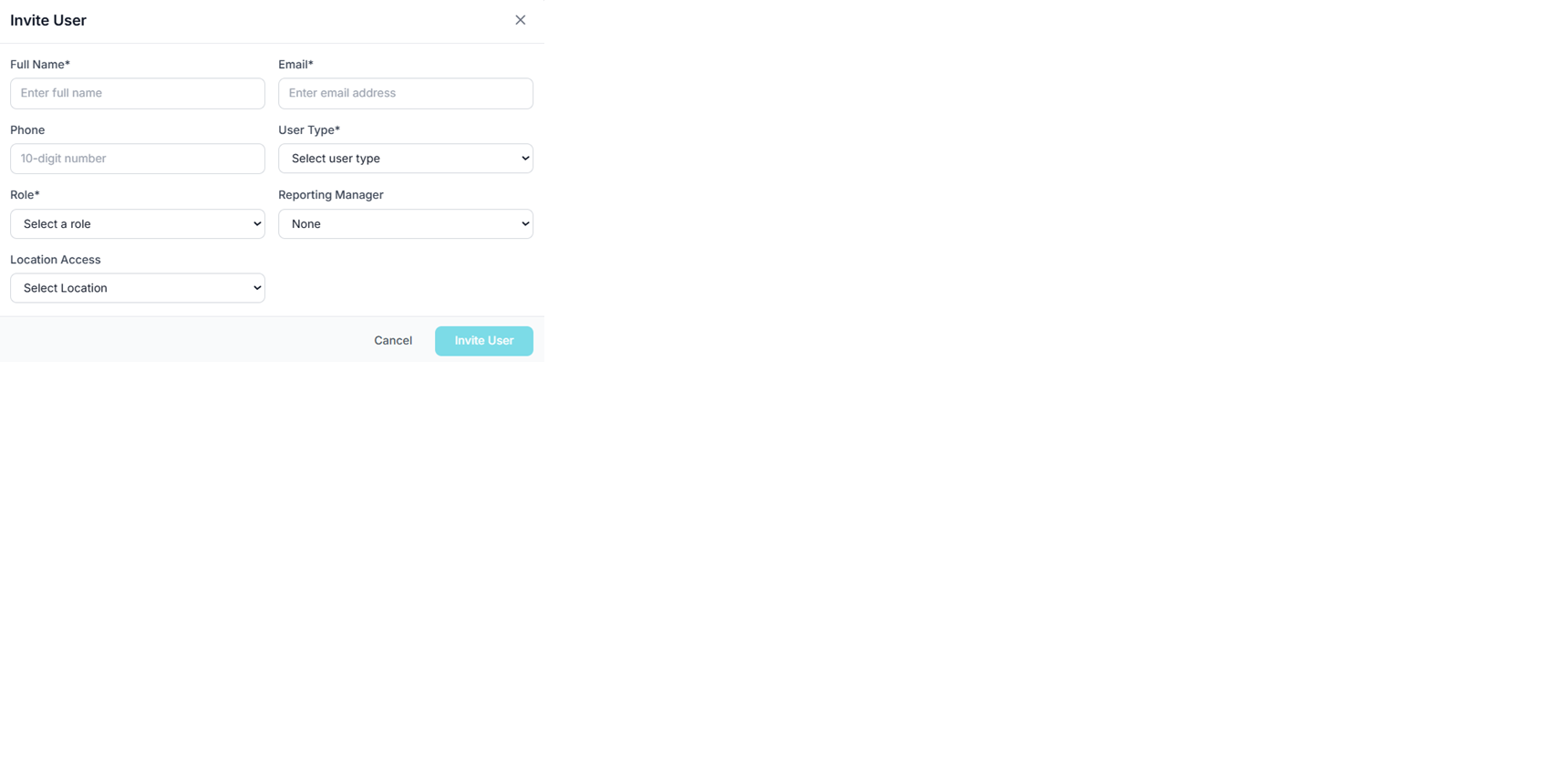
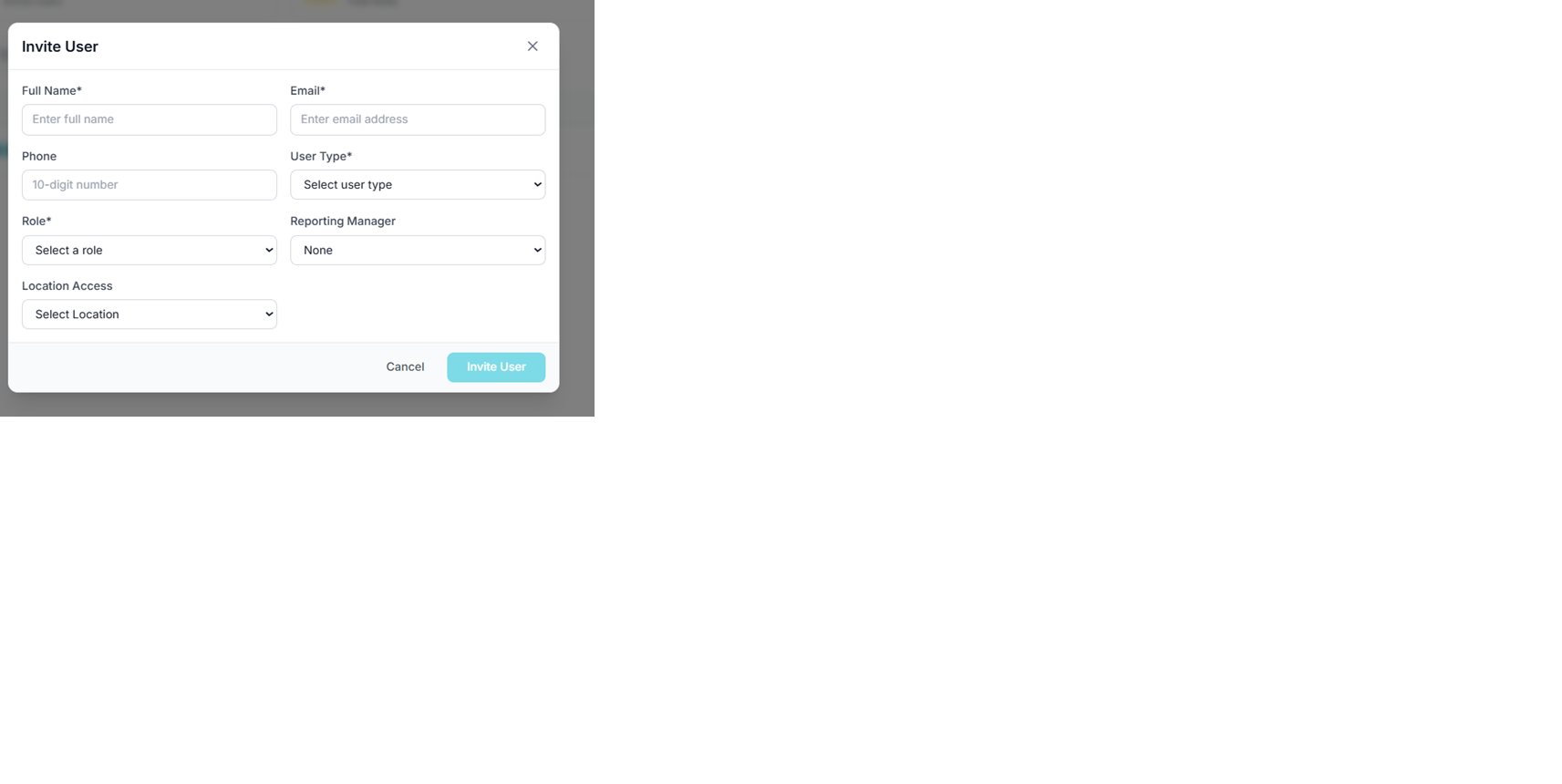
Enter User Details
Fill in the required user details: Full Name, Email ID, Phone, and User Type.
Opens in a new tab • partner.octogenie.com/ai-assistant
Assign Role
In the 'Role' dropdown, select the predefined role (e.g., Admin, Default Lawyer) for the new user.
Opens in a new tab • partner.octogenie.com/settings
.png&w=3840&q=75)
Send Invitation
Click 'Invite User' to submit. The user will receive access based on the assigned role. Note that users can be searched or filtered later.
Opens in a new tab • partner.octogenie.com/settings
Expected Outcome
Team members are successfully added with specific access levels.
You're all set!
New user is successfully added and will receive an invitation email.
How to Manage Roles & Permissions
Configure user roles and their permissions
Roles & Permissions
Define exactly what each role can view, create, edit, or delete in the platform.

Access Roles
From the main Settings menu, go to 'Roles & Permissions'.
Opens in a new tab • partner.octogenie.com/settings/roles
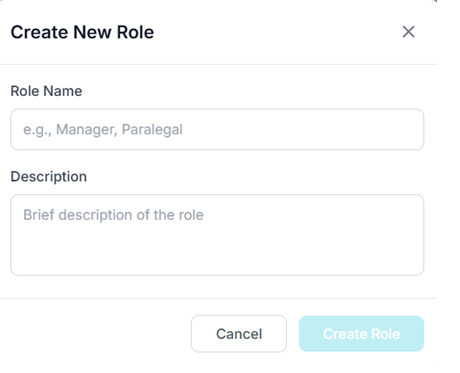
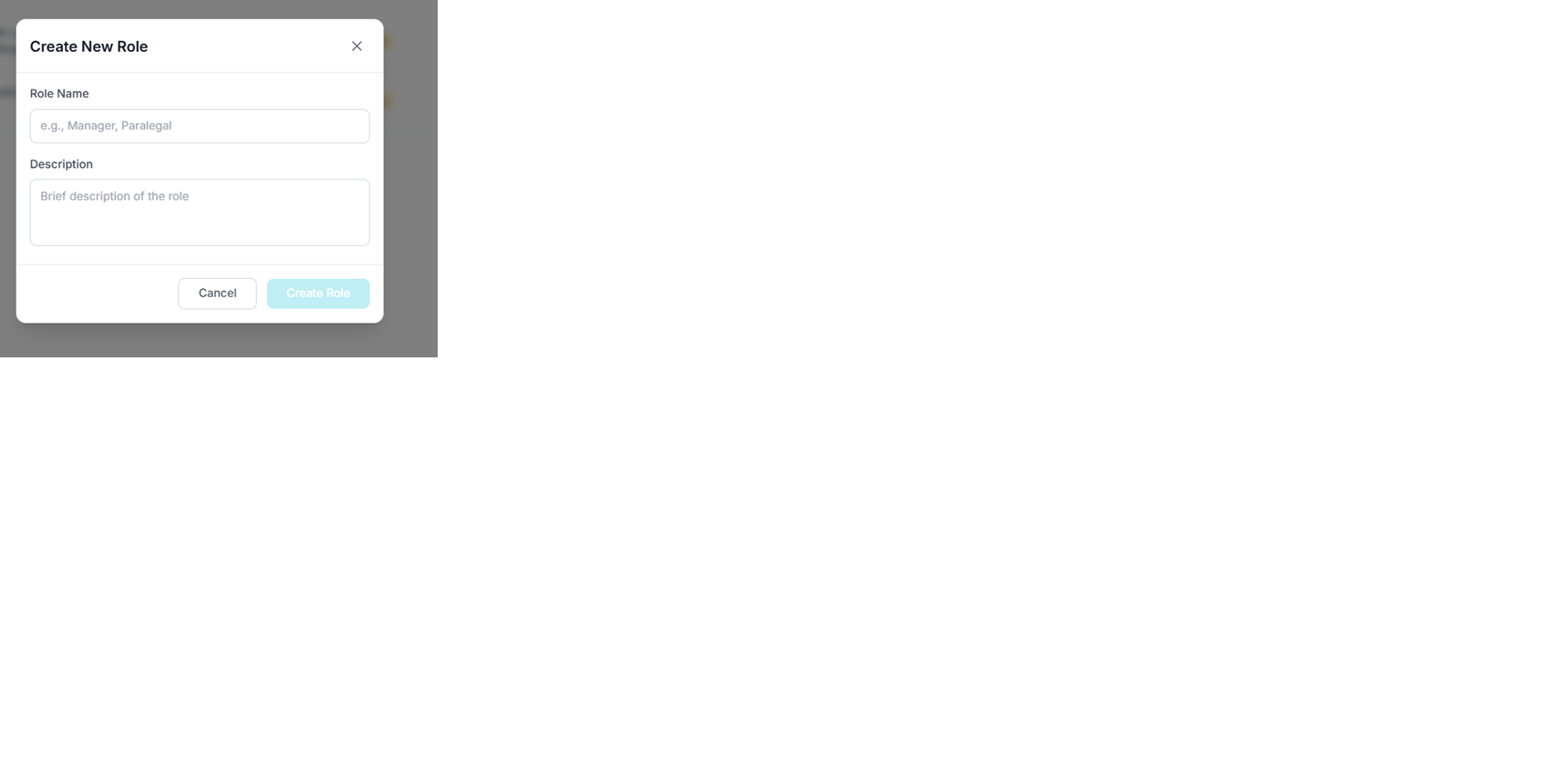
Create a New Role
Click on '+ New Role' at the top-right. Enter the Role Name and an optional Description.
Opens in a new tab • partner.octogenie.com/settings
Configure Hierarchy
Navigate to the role you want to set permissions for in the list. Click 'Configure' under the Actions column.
Opens in a new tab • partner.octogenie.com/settings
Define Permissions
The permissions page will show module-wise options. Select permissions like View, Create, Edit, Delete, or Approve.
Opens in a new tab • partner.octogenie.com/settings
Enable/Disable responsibilities
Toggle the access levels based on the specific responsibilities of that role.
Opens in a new tab • partner.octogenie.com/settings
.png&w=3840&q=75)
Save Configuration
Click 'Save / Update' to apply the changes to all users assigned to this role.
Opens in a new tab • partner.octogenie.com/settings
Expected Outcome
Secure and organized platform access tailored to your firm's structure.
You're all set!
Role permissions are successfully configured and applied to users with that role.
How to Manage Approvals
Configure approval workflows for different modules
Configuring Approvals
Set up approval workflows for critical actions like expenses and invoices.
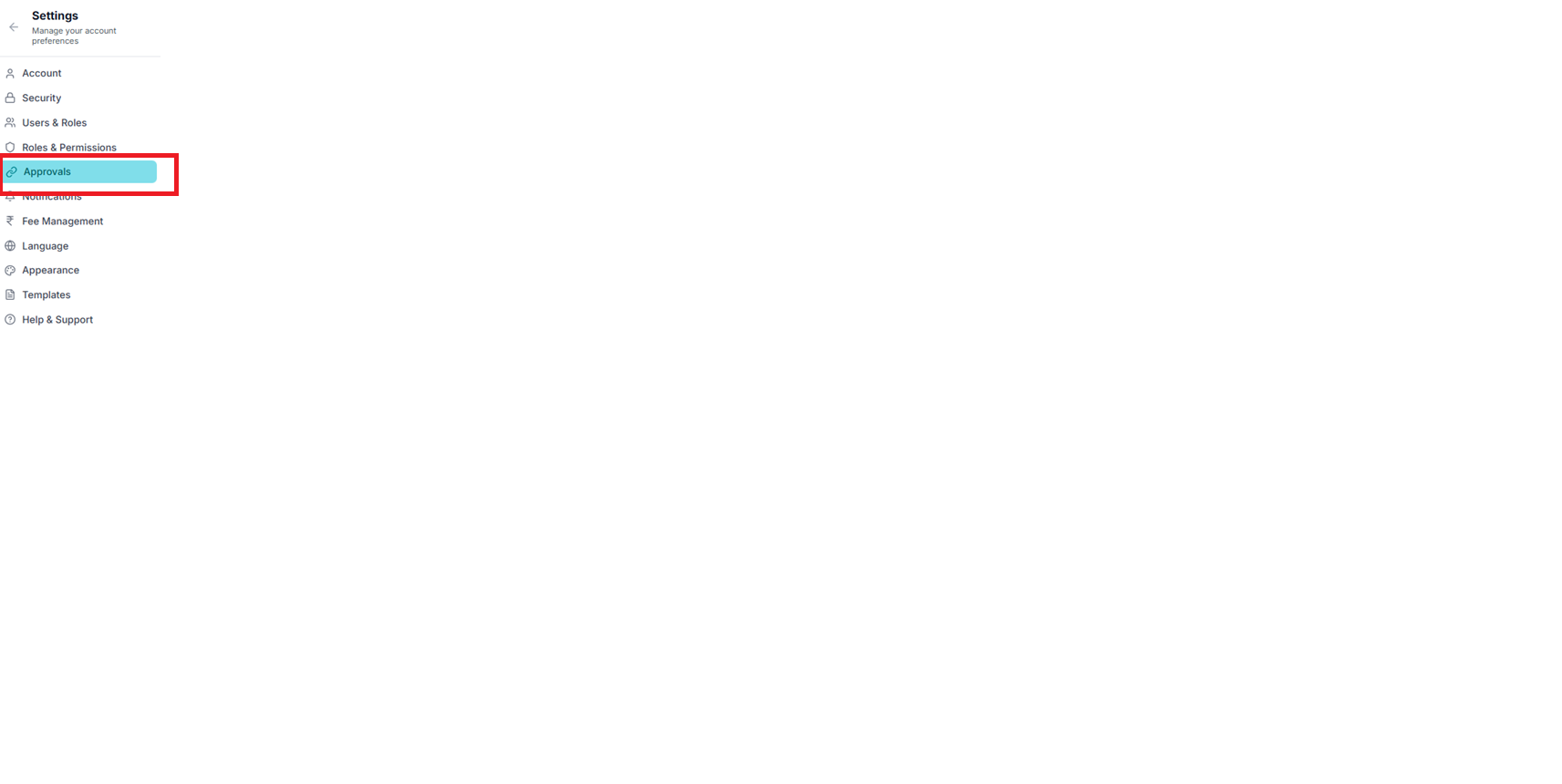
Open Approvals
Click on 'Approvals' under the Settings section menu.
Opens in a new tab • partner.octogenie.com/settings
Select Category
Choose the action group you wish to configure (e.g., Expenses Approval).
Opens in a new tab • partner.octogenie.com/expenses
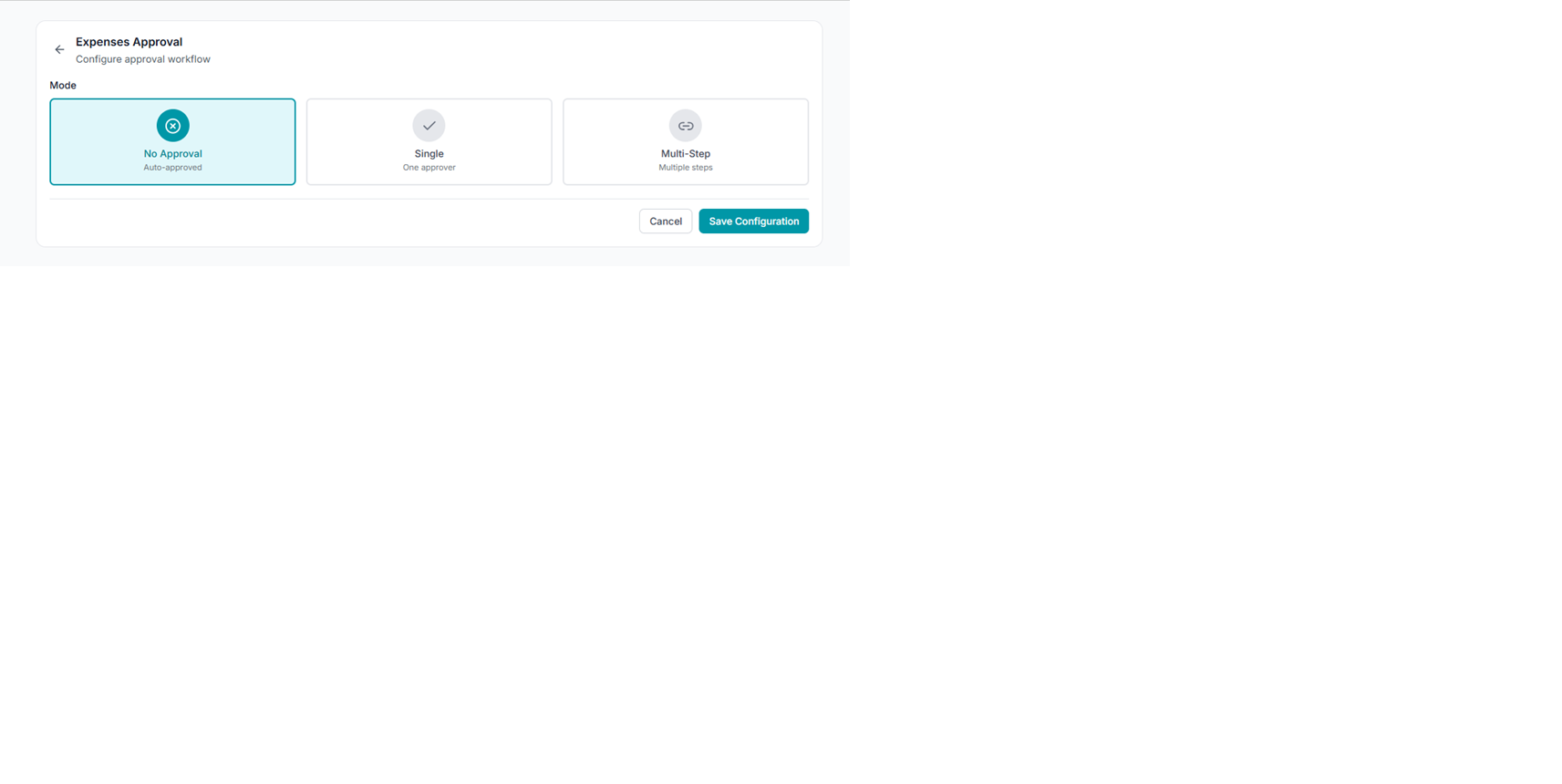
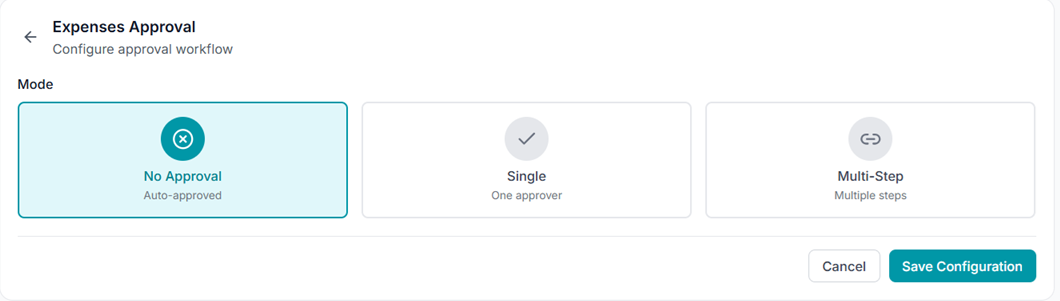
Choose Approval Mode
Select between: 'No Approval' (Auto-approved), 'Single' (One designated approver), or 'Multi-Step' (Multiple approval levels).
Opens in a new tab • partner.octogenie.com/settings
Save Configuration
Click 'Save Configuration' to apply the workflow changes.
Opens in a new tab • partner.octogenie.com/settings
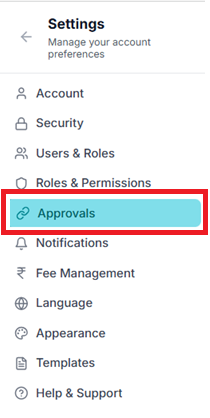
Outcome
All future submissions for that category will now follow the selected approval workflow.
Opens in a new tab • partner.octogenie.com/settings
Expected Outcome
Enhanced financial control and compliance for all transactions.
You're all set!
Approval workflows are successfully configured for your organization.
Account & Profile Settings
Manage your personal information
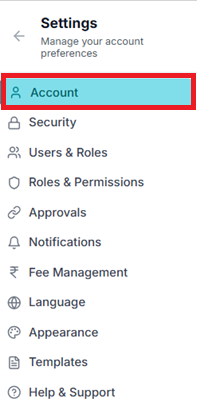
Access Account Settings
From the Settings menu, click on 'Account' to view your profile information.
Opens in a new tab • partner.octogenie.com/settings
Update Personal Details
Edit your name, email, phone number, and other personal information. Ensure all contact details are current.
Opens in a new tab • partner.octogenie.com/ai-assistant
Update Organization Details
Update your firm name, address, logo, and other organizational information that appears on documents and communications.
Opens in a new tab • partner.octogenie.com/documents
Save Changes
Click 'Save' or 'Update Profile' to apply your changes. Your updated information will be reflected across the platform.
Opens in a new tab • partner.octogenie.com/settings
Expected Outcome
Your profile and organization details are up to date across all modules.
Profile Updated
Your account and organization details are now up to date.
Notifications Control
Manage your alert preferences
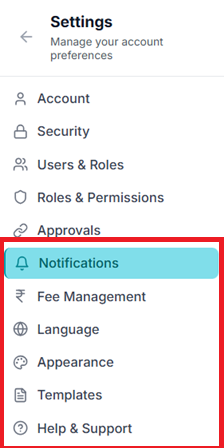
Open Notifications Settings
From the Settings menu, navigate to 'Notifications' to view all notification preferences.
Opens in a new tab • partner.octogenie.com/settings
Configure Email Notifications
Toggle email notifications for different events: New case assignments, Hearing reminders, Invoice approvals, Payment confirmations, and System updates.
Opens in a new tab • partner.octogenie.com/cases
Set In-App Alerts
Choose which activities trigger in-app notifications: Task assignments, Comments and mentions, Document uploads, Status changes, and Deadline reminders.
Opens in a new tab • partner.octogenie.com/tasks
Configure Notification Frequency
Set how often you receive digest emails: Instant, Daily summary, or Weekly summary. This helps reduce notification fatigue.
Opens in a new tab • partner.octogenie.com/settings
Save Preferences
Click 'Save Notification Settings' to apply your preferences. You can update these anytime based on your workflow needs.
Opens in a new tab • partner.octogenie.com/settings
Expected Outcome
You receive timely, relevant notifications without being overwhelmed by alerts.
Notifications Configured
Your notification preferences are set and you'll receive alerts based on your selections.
Fee Management Control
Configure service fees and billing rates
Access Fee Management
From Settings, navigate to 'Fee Management' or 'Billing Configuration' section.
Opens in a new tab • partner.octogenie.com/settings
Set Default Hourly Rates
Configure standard hourly rates for different lawyer levels: Partner, Senior Associate, Associate, Junior Associate, and Paralegal.
Opens in a new tab • partner.octogenie.com/settings
Define Service Fees
Set fixed fees for common services: Consultation fees, Document drafting, Court appearance, Legal research, and Contract review.
Opens in a new tab • partner.octogenie.com/documents
Configure Tax Settings
Set up tax rates (GST/VAT) that apply to your invoices. Configure whether taxes are included or added separately.
Opens in a new tab • partner.octogenie.com/invoices
Set Payment Terms
Define default payment terms: Due date (e.g., Net 30, Net 15), Late payment penalties, and Accepted payment methods.
Opens in a new tab • partner.octogenie.com/payments
Save Fee Structure
Review all fee settings and click 'Save Configuration'. These rates will be used as defaults when creating invoices.
Opens in a new tab • partner.octogenie.com/invoices
Expected Outcome
Your firm's fee structure is properly configured for accurate and consistent billing.
Fee Structure Set
Your billing rates and service fees are configured for accurate invoicing.
Language & Appearance
Personalize your platform experience
Open Preferences
From Settings, navigate to 'Preferences' or 'Appearance' section.
Opens in a new tab • partner.octogenie.com/settings
Select Language
Choose your preferred language from the dropdown menu. OctoGenie supports multiple languages including English, Hindi, and regional languages.
Opens in a new tab • partner.octogenie.com/settings
Choose Theme
Select between Light mode, Dark mode, or Auto (follows system preference). Dark mode reduces eye strain during extended use.
Opens in a new tab • partner.octogenie.com/settings
Customize Display
Adjust other display preferences: Font size, Density (compact/comfortable), and Date/time format.
Opens in a new tab • partner.octogenie.com/settings
Apply Changes
Click 'Save Preferences'. The platform will refresh with your selected language and appearance settings.
Opens in a new tab • partner.octogenie.com/settings
Expected Outcome
The platform interface is customized to your personal preferences for optimal comfort and productivity.
Interface Customized
Your language and appearance preferences are applied.
Document Templates
Manage reusable document formats
Access Templates
From Settings, click on 'Templates' to view all available document templates.
Opens in a new tab • partner.octogenie.com/documents
View Template Categories
Browse templates by category: Legal notices, Contracts, Petitions, Letters, Email templates, and Invoice templates.
Opens in a new tab • partner.octogenie.com/invoices
Create New Template
Click '+ New Template' to create a custom template. Choose the template type and provide a name and description.
Opens in a new tab • partner.octogenie.com/settings
Design Template Content
Use the template editor to create your document format. Add placeholders for dynamic content like client name, case number, dates, etc.
Opens in a new tab • partner.octogenie.com/clients
Edit Existing Templates
Select any template from the list and click 'Edit' to modify its content, formatting, or placeholders.
Opens in a new tab • partner.octogenie.com/settings
Save and Use
Save your template. It will now be available when creating documents, allowing you to quickly generate formatted documents with client-specific information.
Opens in a new tab • partner.octogenie.com/clients
Expected Outcome
Standardized, professional document templates are ready for quick use across your practice.
Templates Ready
Your document templates are configured and ready for use.
Help & Support
Get assistance when you need it
Access Help Center
From Settings, click on 'Help & Support' or use the help icon (?) available in the top navigation bar.
Opens in a new tab • partner.octogenie.com/settings
Browse Documentation
Access user guides, video tutorials, and step-by-step instructions for all platform features. Search for specific topics or browse by category.
Opens in a new tab • partner.octogenie.com/documents
Check FAQs
Review frequently asked questions covering common issues: Account management, Billing questions, Feature usage, and Troubleshooting.
Opens in a new tab • partner.octogenie.com/settings
Contact Support
If you can't find an answer, submit a support ticket or use live chat. Provide details about your issue for faster resolution.
Opens in a new tab • partner.octogenie.com/settings
Track Support Tickets
View the status of your support requests and receive updates via email. Access your ticket history to reference past issues and solutions.
Opens in a new tab • partner.octogenie.com/settings
Expected Outcome
You have access to comprehensive help resources and direct support for any platform-related questions or issues.
Support Resources Available
You now know how to access help and support whenever needed.