Calendar & Hearings
Schedule hearings, set reminders, and sync with your calendar.
How to Add a Hearing
Schedule and track court hearings
Prerequisites
- You must be logged in to the OctoGenie Partner Portal
- The relevant Case/Matter should already be created
How do I add a hearing?
Schedule markers for your cases or matters to ensure you never miss a court appearance. Track every hearing from initial scheduling through to completion.
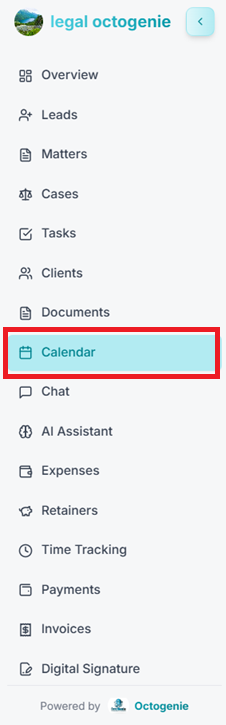
Open Calendar
From the left-hand menu, click on 'Calendar'. The calendar view (Day/Week/Month) will open.
Opens in a new tab • partner.octogenie.com/calendar
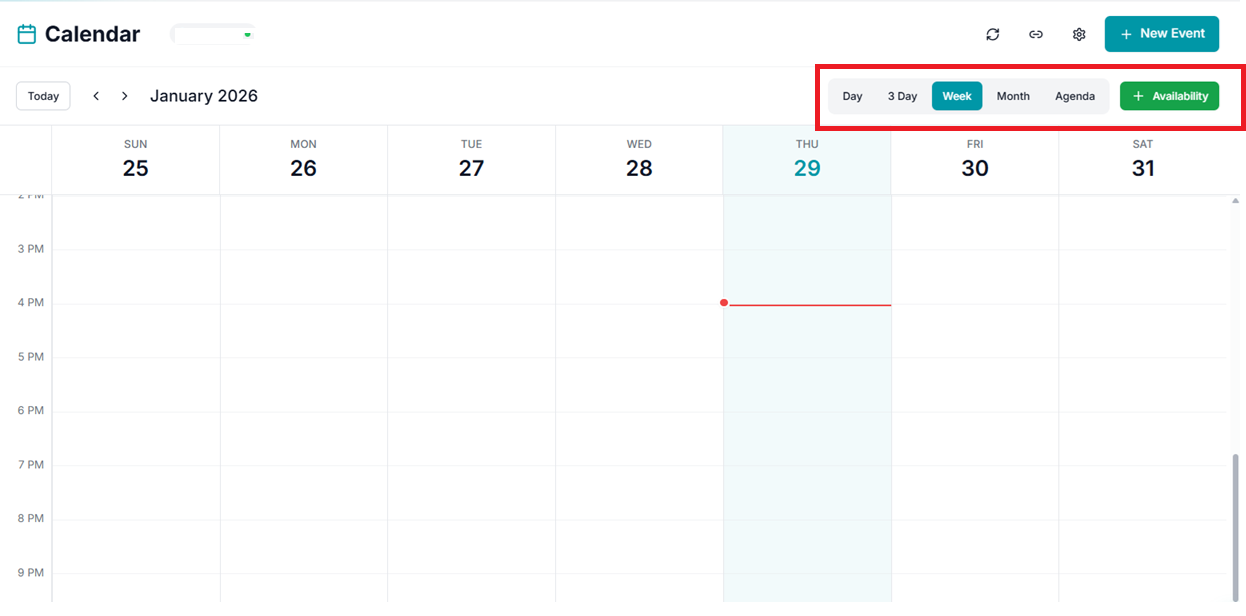
Select View and Click New Event
Select 'Week' or 'Day' view for better time selection. Click the '+ New Event' button on the top-right corner of the calendar.
Opens in a new tab • partner.octogenie.com/calendar
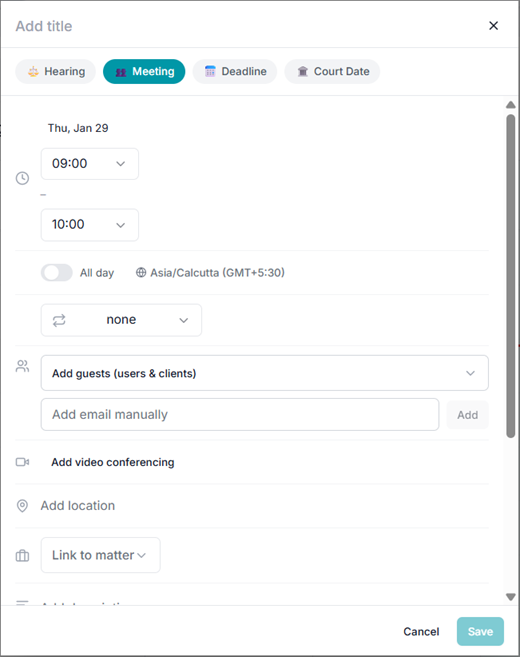
Enter Hearing Details
In the 'New Event / Hearing' form, enter the Event Title and select 'Hearing' as the Event Type. Fill in the Hearing Date along with Start and End times.
Opens in a new tab • partner.octogenie.com/calendar
Link Case/Matter and Location
Select the relevant Case or Matter from the dropdown. Link the associated Client. Enter the court name or hearing location in the Court/Location field.
Opens in a new tab • partner.octogenie.com/clients
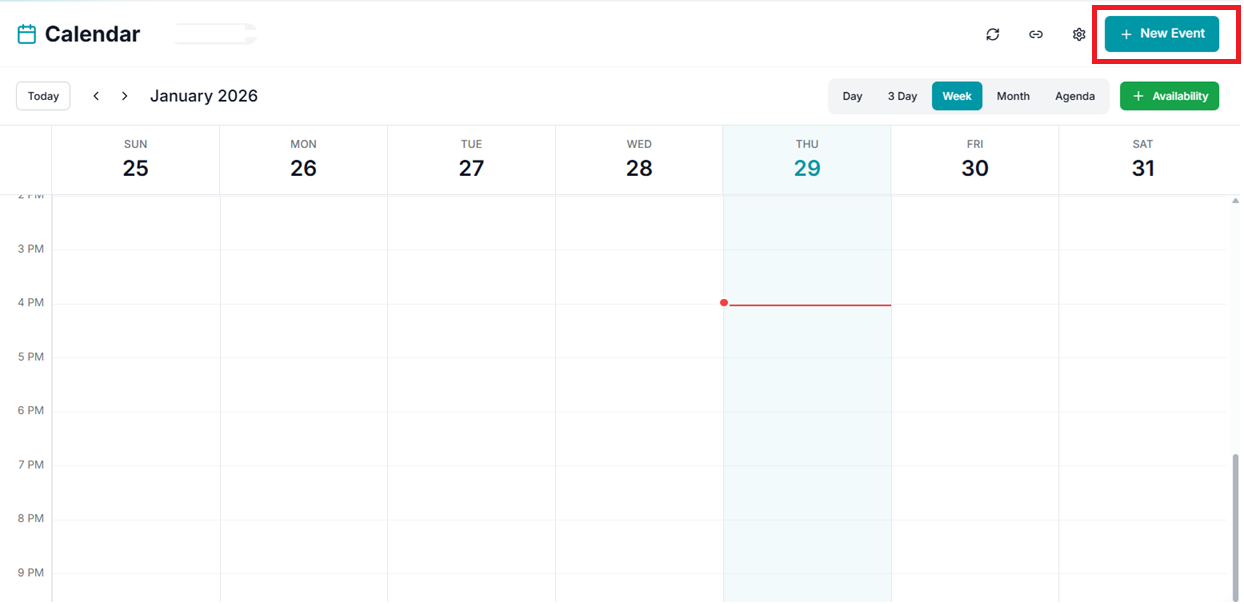
Save and Verify
Add an optional description/purpose. Review all details and click 'Save / Create Event'. The hearing will now appear on your calendar.
Opens in a new tab • partner.octogenie.com/calendar
Expected Outcome
Hearing is successfully scheduled and linked to the relevant Case/Matter for easy tracking.
You're all set!
Hearing is successfully scheduled and visible in the Calendar, linked to the relevant Case/Matter for easy tracking.
How to View Upcoming Hearings
Access and review scheduled hearings
Prerequisites
- User must be logged in to OctoGenie
- Hearings/events should already be added to the calendar
How do I view upcoming hearings?
Quickly access and review all scheduled hearings for future dates. Use various views like Agenda for a quick summary of upcoming commitments.
Navigation
From the left-hand menu, click on 'Calendar' to open your schedule.
Opens in a new tab • partner.octogenie.com/calendar/new
Select Appropriate View
On the top-right, choose: 'Week' for current week, 'Month' for full month, or 'Agenda' for a quick list-style view of all upcoming items.
Opens in a new tab • partner.octogenie.com/calendar
Navigate Date Range
Use the left (<) and right (>) arrow buttons near the month/year to move to future dates. Click 'Today' to return instantly.
Opens in a new tab • partner.octogenie.com/calendar
Identify Events
Upcoming hearings appear as events on the calendar grid. Click on any event to view its summary: title, date/time, and linked matter.
Opens in a new tab • partner.octogenie.com/matters
Expected Outcome
Users can successfully view and plan for all upcoming hearings. Use 'Agenda view' for a consolidated quick list.
Opens in a new tab • partner.octogenie.com/calendar
Expected Outcome
Full visibility of the firm's court commitments.
You're all set!
All upcoming hearings are displayed in the selected view format.
How do I reschedule a hearing?
Update existing hearing dates and times
Locate the Hearing
Open the Calendar. Use navigation arrows to move to the correct date and identify the hearing you want to reschedule.
Opens in a new tab • partner.octogenie.com/calendar/new
Open Details
Click on the hearing event on the calendar to open the details pop-up window.
Opens in a new tab • partner.octogenie.com/calendar
Enter Edit Mode
Click on the Edit (✏️) icon or 'Edit' button in the hearing details window.
Opens in a new tab • partner.octogenie.com/calendar
Update Date and Time
Modify the Hearing Date, Start Time, or End Time. Update notes or remarks for the rescheduling reason if necessary.
Opens in a new tab • partner.octogenie.com/calendar
Save Changes
Click on 'Update / Save'. The hearing will move to the new selected date and time in the calendar view.
Opens in a new tab • partner.octogenie.com/calendar
Verify Results
The hearing is successfully rescheduled and appears on the new date/time while all linked case/matter details remain unchanged.
Opens in a new tab • partner.octogenie.com/matters
Expected Outcome
Hearing records are accurately updated with zero data loss on linked entities.
How do I get hearing reminders?
Receive timely alerts for important events
Open Hearing Event
Navigate to the date of the scheduled hearing and click on the event to open details.
Opens in a new tab • partner.octogenie.com/calendar/new
Enable Notification
Click the Edit (✏️) option. In the hearing form, locate the 'Reminder / Notification' section.
Opens in a new tab • partner.octogenie.com/calendar
Select Timing
Choose when to receive the reminder: 10 minutes before, 30 minutes before, 1 hour before, or 1 day before.
Opens in a new tab • partner.octogenie.com/calendar
Save Settings
Click on 'Save / Update' to apply the reminder settings. You will receive in-app alerts before the hearing.
Opens in a new tab • partner.octogenie.com/calendar
Google Calendar Sync
If the calendar is synced with Google (check for Google icon near calendar name), ensure notifications are enabled in Google Calendar for mobile alerts.
Opens in a new tab • partner.octogenie.com/calendar
Expected Outcome
The user receives multi-channel alerts/reminders before every scheduled hearing time.