Ez-Draft
Upload, edit, review, and approve documents through a structured workflow — from draft to final locked approval.
What is Ez-Draft?
Ez-Draft is the document management and approval module in OctoGenie. It provides a standard process for uploading, editing, reviewing, and approving documents. Once a document is approved it is locked to preserve its final state.
Roles in Ez-Draft
- Author / Editor — uploads and edits the draft
- Reviewer — reviews the document and provides feedback
- Approver — grants final approval, after which the document is locked
Document Workflow
Upload Draft → Edit → Save Version → Send for Review → Review → Make Changes (if required) → Save Version → Finalize for Approval → Approve → Document Locked
How to Access the Ez-Draft Module
Navigate to Ez-Draft from the left menu
How to Access the Ez-Draft Module
Ez-Draft is used to upload, edit, review, and approve documents through a structured workflow in OctoGenie.
Log in to OctoGenie
Log in to your OctoGenie account using your credentials.
Opens in a new tab • partner.octogenie.com/
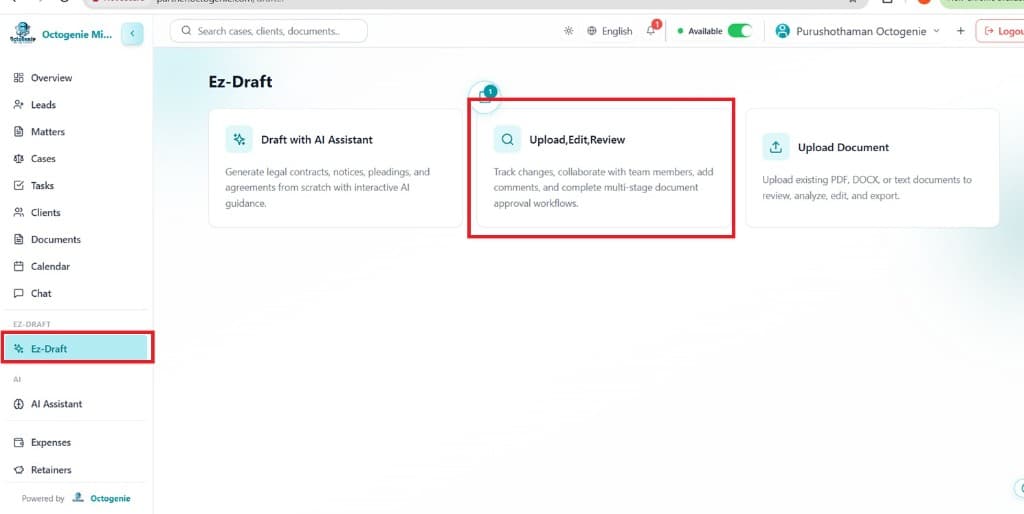
Open Ez-Draft from the Left Menu
From the left-side menu, click 'Ez-Draft'. Select 'Upload, Edit, Review' to manage documents through the approval workflow.
Opens in a new tab • partner.octogenie.com/documents
Select Upload, Edit or Review
Choose the action you want to perform: Upload, Edit, or Review.
Pro Tip
- Make sure you have the required access/permissions to upload and manage drafts.
You're in Ez-Draft!
You have successfully accessed the Ez-Draft module and are ready to manage documents.
How to Upload the Draft
Upload a document to Ez-Draft
How to Upload the Draft
Upload your document to Ez-Draft so it becomes available for editing and review.
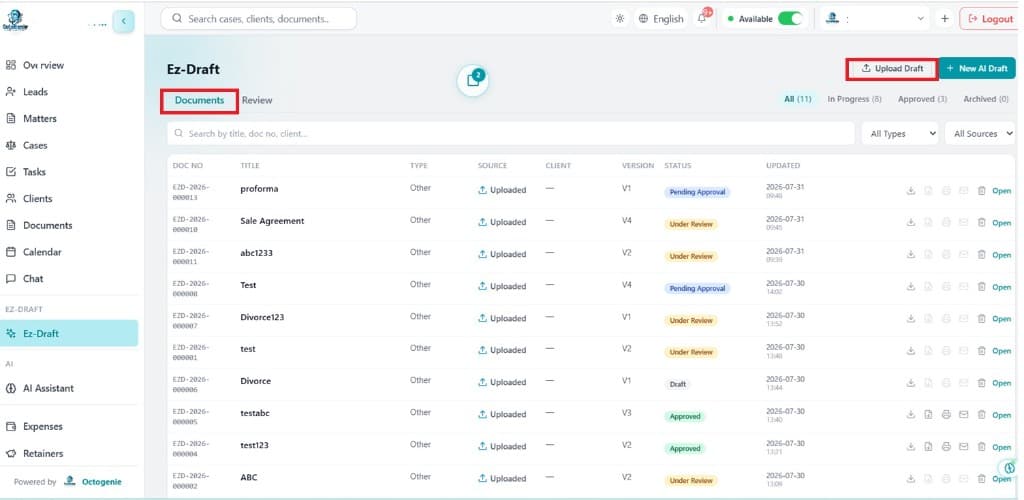
Navigate to the Documents Tab
Inside Ez-Draft, click on the 'Documents' tab. Click 'Upload Draft' at the top right.
Opens in a new tab • partner.octogenie.com/documents
Click Upload Draft
Click the 'Upload Draft' button at the top-right of the Documents list.
Opens in a new tab • partner.octogenie.com/documents/upload
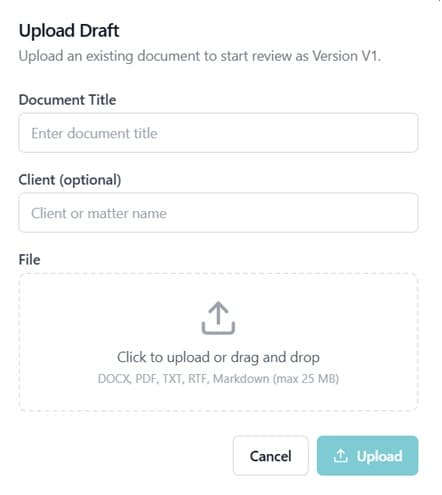
Select Your Document
Enter the document title, optionally add a client name, then select the file from your system (DOCX, PDF, TXT, RTF, or Markdown — max 25 MB) and click 'Upload'.
Opens in a new tab • partner.octogenie.com/clients
Document Available for Editing
Once uploaded, the document will be available for editing.
Opens in a new tab • partner.octogenie.com/documents
Pro Tip
- Upload the latest version of the document and ensure that the file contains all the required information before starting the review process.
Expected Outcome
Your document is successfully uploaded and ready for editing.
Draft Uploaded!
Your document is successfully uploaded and available for editing.
How to Edit the Document
Make changes and save a new version
How to Edit the Document
Open the uploaded document, make required changes, and save a new version to maintain document history.
Open the Uploaded Document
Open the document you uploaded in the Documents tab.
Opens in a new tab • partner.octogenie.com/documents/upload
Make the Required Changes
Review the content and make any necessary corrections or updates.
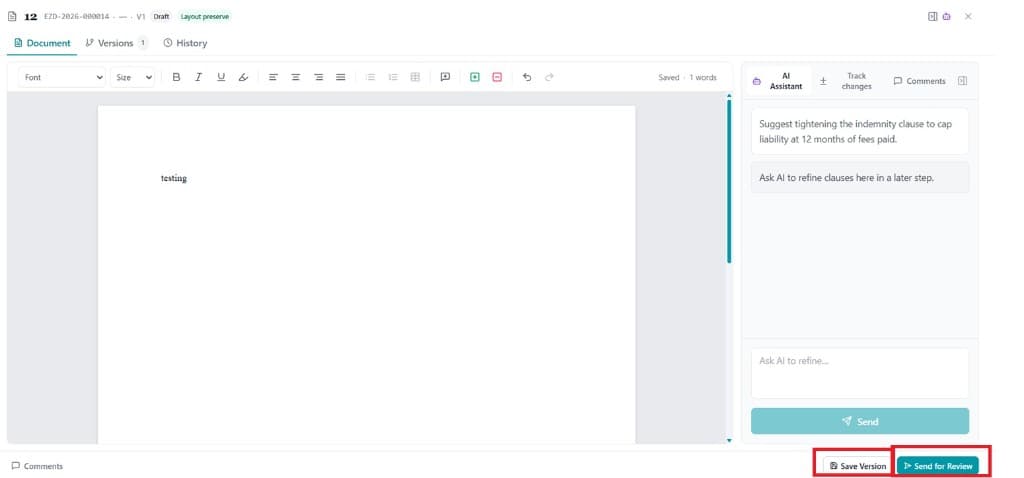
Save Version
Once editing is complete, click 'Save Version' at the bottom-right of the screen.
Pro Tip
- Always save the document as a new version after making significant changes. This helps maintain the document version history and ensures that the latest changes are captured.
Expected Outcome
Your changes are saved as a new version and the document history is updated.
Changes Saved!
Your edits are saved as a new version and the document history is updated.
How to Send the Document for Review
Assign a reviewer for the document
How to Send the Document for Review
After saving the latest version, send the document to the assigned reviewer for feedback.
Save the Latest Version
Ensure you have saved the latest version of the document before sending for review.
Opens in a new tab • partner.octogenie.com/documents
Click Send for Review
Click the 'Send for Review' button after saving the latest version.
Select the Reviewer
Select or assign the appropriate reviewer for the document.
Opens in a new tab • partner.octogenie.com/documents
Reviewer Receives the Document
The reviewer will receive the document for review.
Opens in a new tab • partner.octogenie.com/documents
Pro Tip
- Before sending the document for review, verify that all required edits are completed and the correct reviewer has been selected.
Expected Outcome
The document is sent to the assigned reviewer and is ready for feedback.
Sent for Review!
The document has been sent to the assigned reviewer and is ready for feedback.
Review the Document
Reviewer checks content and provides feedback
Review the Document
The assigned reviewer opens the document, provides feedback or requests changes, and the author updates accordingly.
Reviewer Opens the Document
The assigned reviewer opens and reviews the document in Ez-Draft.
Opens in a new tab • partner.octogenie.com/documents
Provide Feedback or Request Changes
The reviewer checks the content and provides feedback or requests changes if required.
Author Makes Requested Changes
The author makes any changes requested by the reviewer.
Save Version After Changes
Click 'Save Version' after completing the reviewer-requested changes.
Pro Tip
- If changes are requested, update the document before proceeding to the approval stage. Avoid finalizing the document until all review comments are addressed.
Expected Outcome
All review comments are addressed and the document is updated and ready for approval.
Review Complete!
All review comments are addressed and the document is ready for final approval.
Final Approval
Finalize and lock the document
Final Approval
Once reviewed, finalize the document for approval. After the approver approves it, the document is locked.
Open the Latest Version
Once the review is completed, open the latest version of the document.
Opens in a new tab • partner.octogenie.com/documents
Save the Latest Version
Click 'Save Version' to ensure the latest changes are saved.
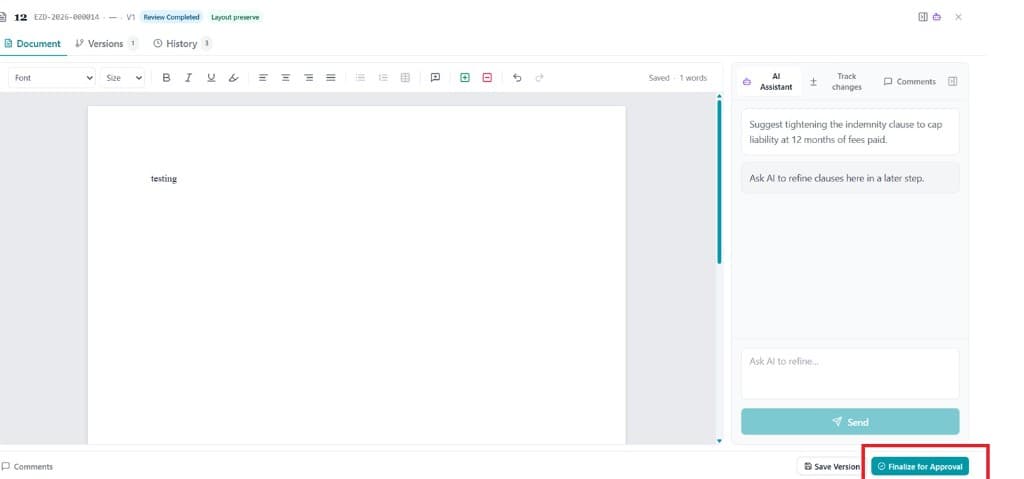
Click Finalize for Approval
Click 'Finalize for Approval' at the bottom-right of the screen. The document will be sent to the designated approver.
Opens in a new tab • partner.octogenie.com/documents
Pro Tip
- Review the document one final time before selecting 'Finalize for Approval', as this moves the document to the approval stage.
Approver Reviews and Approves
The approver reviews the finalized document. If it meets the required standards, the approver approves it.
Opens in a new tab • partner.octogenie.com/documents
Document Locked
Once approved, the document is locked and cannot be edited further.
Opens in a new tab • partner.octogenie.com/documents
Pro Tip
- After approval, the document cannot be edited. Make sure all required corrections and approvals are completed before final approval.
Expected Outcome
The document is approved and locked, completing the Ez-Draft workflow.
Important Notes
- Always work on the latest document version.
- Save the document after making changes.
- Ensure all review comments are addressed before finalizing.
- Verify the reviewer and approver before sending the document.
- Once approved, the document is locked and cannot be edited.
Document Approved & Locked!
The document has been approved and is now locked. The Ez-Draft workflow is complete.
How to Configure Reviewers and Approvers
Set up reviewer and approver roles in Settings
How to Configure Reviewers and Approvers
Configure who reviews and approves documents in Ez-Draft by setting up roles or specific users via the OctoGenie partner portal.
Log in to the Partner Portal
Log in to https://partner.octogenie.com/.
Opens in a new tab • partner.octogenie.com/
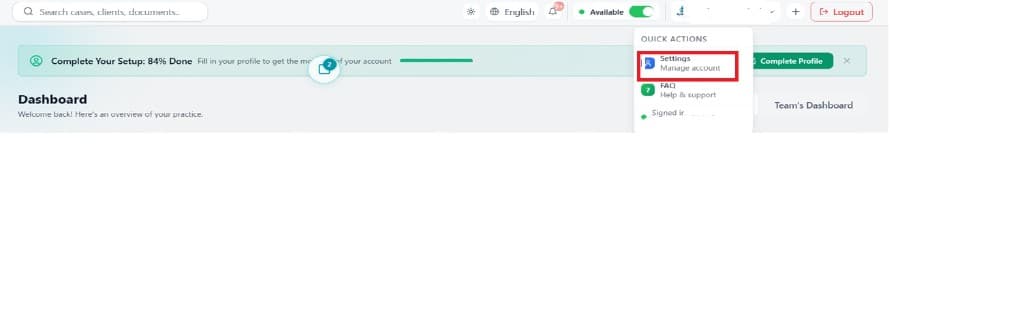
Go to Settings
Click on your Profile Name on the right top. In the Quick Actions dropdown, click 'Settings – Manage account'.
Opens in a new tab • partner.octogenie.com/settings
Click on Approvals
In the Settings sidebar, click on the 'Approvals' option to open Approval Configuration.
Opens in a new tab • partner.octogenie.com/settings
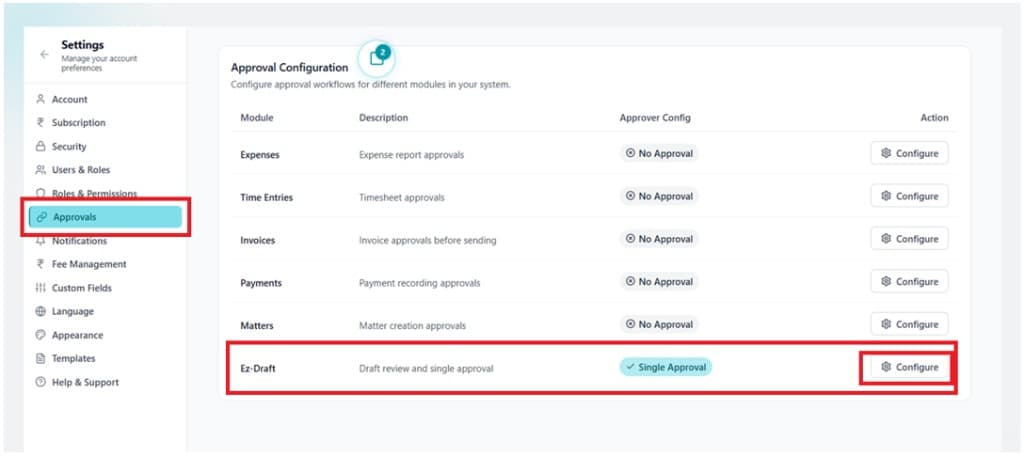
Select Ez-Draft and Configure
In the Approval Configuration table, find the 'Ez-Draft' module and click the 'Configure' button. The Ez-Draft Approval page lets you set a single reviewer and a single approver.
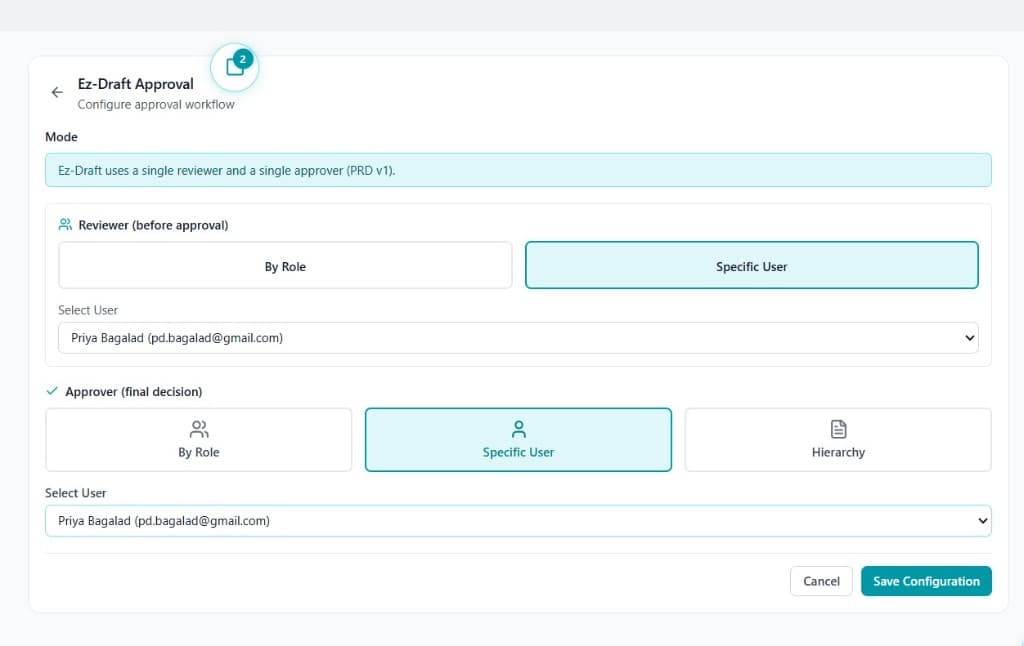
Select Reviewer and Approver
Select the Reviewer and Approver either by Role or by selecting a Specific User.
Save Configuration
Click 'Save Configuration' to save the reviewer and approver settings.
Opens in a new tab • partner.octogenie.com/settings
Pro Tip
- Make sure the required reviewer and approver are correctly selected before saving the configuration.
Expected Outcome
Reviewer and approver roles are configured and will be used for all future Ez-Draft document workflows.
Configuration Saved!
Reviewer and approver roles are configured and will apply to all future Ez-Draft workflows.