Invoices
Create, manage, track, and monitor all client invoices in one centralized place.
What is the Invoices section used for?
The Invoices section is used to create, manage, track, and monitor all client invoices in one centralized place. It helps users keep complete visibility over billing, payment status, and outstanding amounts for cases or matters.
How the Invoices Section is Used
- Create Invoices: Generate invoices for clients against cases or matters.
- View Invoice Summary: Get a quick overview of Total Invoiced amount, Paid amount, Pending amount, Overdue invoices.
- Track Invoice Status: Monitor invoices based on their status such as: Sent, Partially Paid, Paid, Overdue.
- Manage All Invoices: View all invoices in a single list with details.
How to Create a New Invoice
Generate invoices for clients
Creating a New Invoice
Create, manage, track, and monitor all client invoices in one centralized place. Maintain complete visibility over billing, payment status, and outstanding amounts.
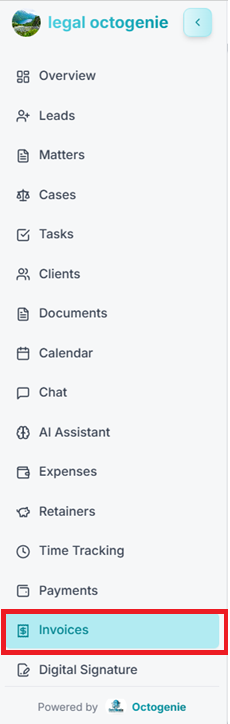
Navigate to Invoices
From the left-hand menu, click on Invoices. The Invoices dashboard will open, displaying summary details like Total Invoiced, Paid, Pending, and Overdue amounts.
Opens in a new tab • partner.octogenie.com/invoices
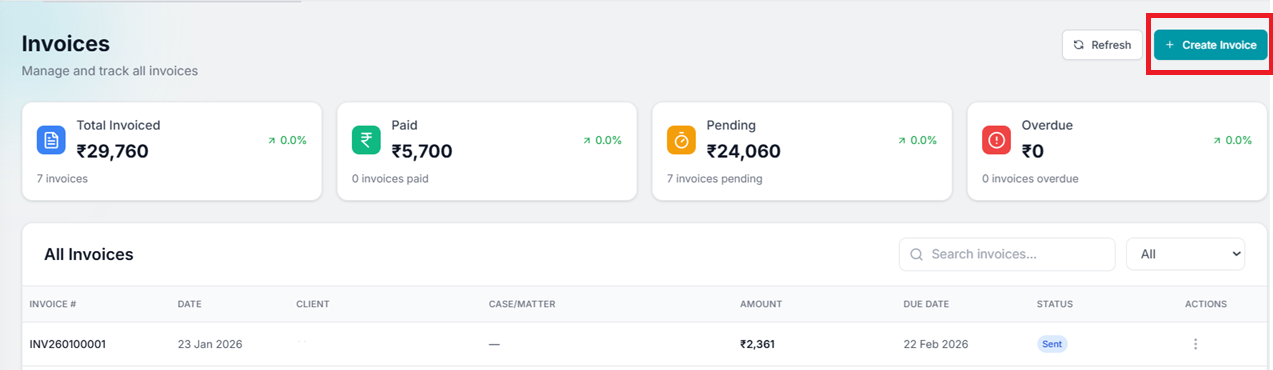
Click on Create Invoice
On the top-right corner of the Invoices page, click the 'Create Invoice' button.
Opens in a new tab • partner.octogenie.com/invoices/new
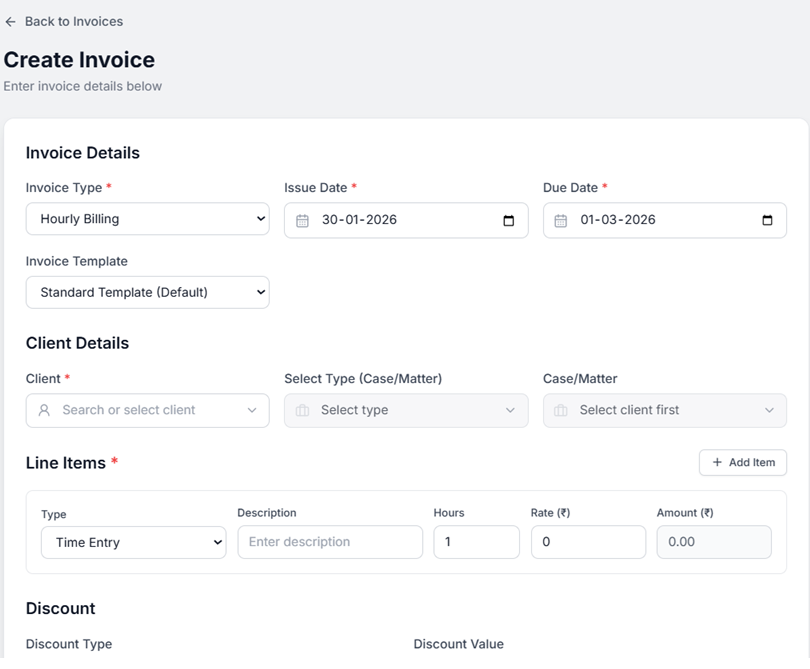
Enter Invoice Details
Select the Client for whom the invoice is being created. Link the invoice to a Case/Matter if applicable. Enter the Invoice Date and Due Date.
Opens in a new tab • partner.octogenie.com/clients
Add Service Items
Add the Invoice Amount and service details as required in the line items section. You can specify rates and quantities for each item.
Opens in a new tab • partner.octogenie.com/invoices
Review Information
Verify all entered details such as client, amount, and due date to ensure accuracy before generation.
Opens in a new tab • partner.octogenie.com/clients

Generate and Send
Click on 'Create Invoice' located on the right bottom. The invoice will be recorded with a status of 'Sent'.
Opens in a new tab • partner.octogenie.com/invoices/new
You're all set!
Invoice is successfully created and can be tracked for payment status.
How to Track Invoice Status
Monitor invoice payment status
Tracking and Managing Invoices
Maintain complete visibility over billing, payment status, and outstanding amounts for all legal matters.
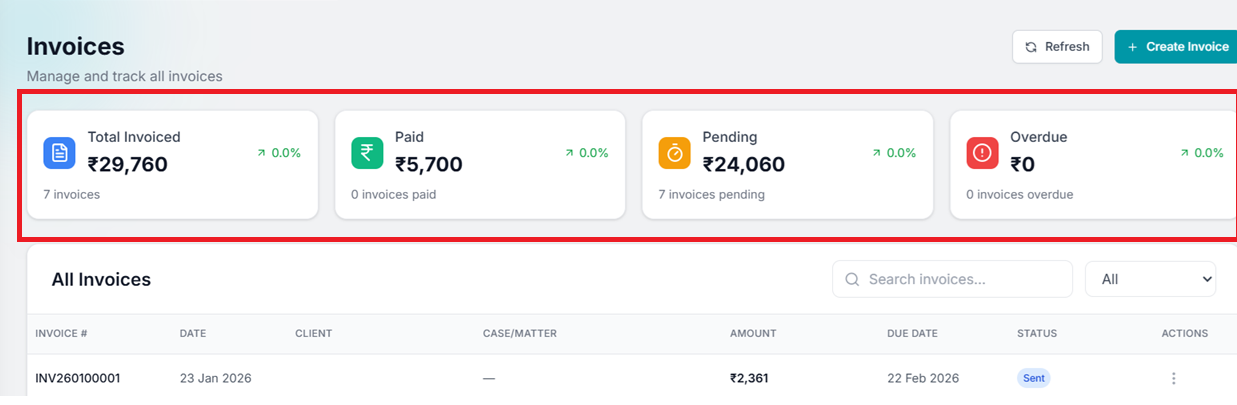
View Invoice Summary
Get a quick overview of Total Invoiced amount, Paid amount, Pending amount, and Overdue invoices at the top of the dashboard.
Opens in a new tab • partner.octogenie.com/invoices
Monitor Invoice Status
Track invoices based on their current status: Sent, Partially Paid, Paid, or Overdue. This helps in understanding billing performance at a glance.
Opens in a new tab • partner.octogenie.com/invoices
Review Detailed List
Manage all invoices in a single list with details like Invoice number, date, Client name, Linked case/matter, and Amount.
Opens in a new tab • partner.octogenie.com/clients
Expected Outcome
Stay informed about your firm's cash flow and follow up on pending payments efficiently.
Searching and Filtering Invoices
Find specific billing records instantly
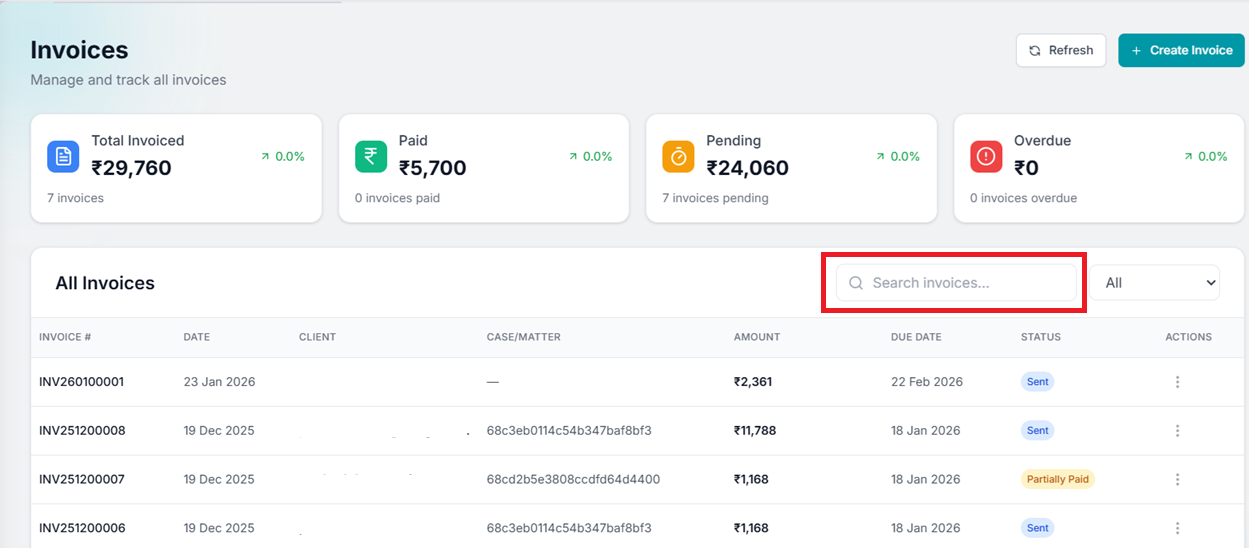
Use Search Invoices
Use the Search field to find invoices using Invoice number, Client email, or Case/Matter reference.
Opens in a new tab • partner.octogenie.com/clients
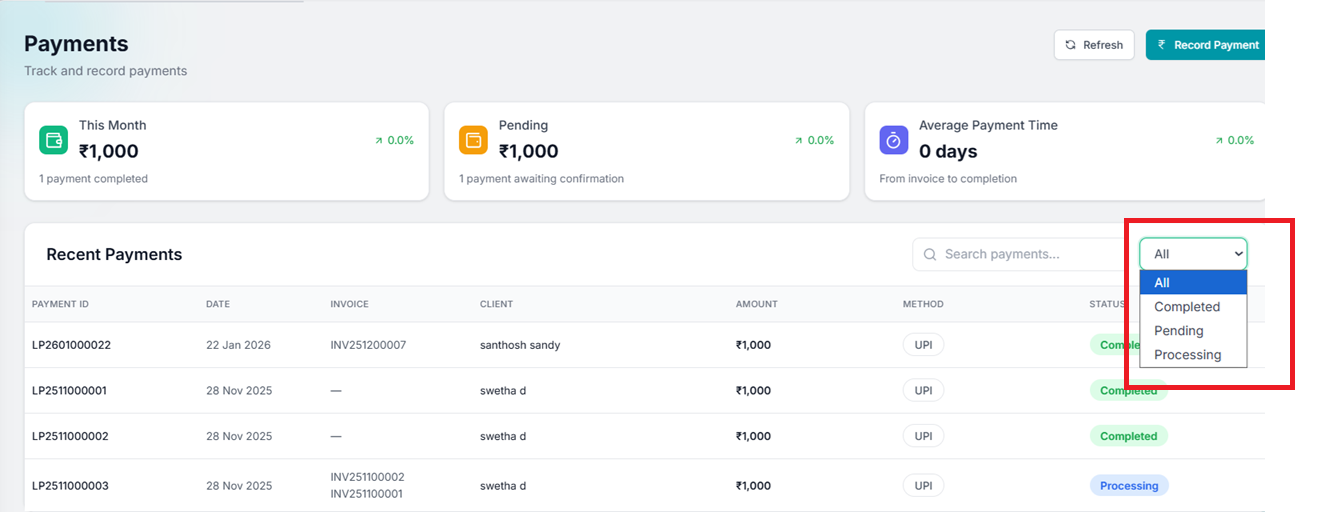
Filter by Status
Click on the status filter dropdown. You can quickly view invoices based on: Draft, Sent, Paid, Overdue, or Partially Paid.
Opens in a new tab • partner.octogenie.com/invoices
Take Invoice Actions
Use the three-dot menu on any invoice to perform actions such as viewing details, updating status, or recording payments.
Opens in a new tab • partner.octogenie.com/invoices
Expected Outcome
Efficiently locate and manage any invoice record in your system.
Billing Cycle Managed
You can now easily find, track, and manage all your firm's invoices from a single dashboard.