Tasks
Create and assign tasks related to cases, matters, or clients for effective task tracking and management. Stay organized and ensure every deadline is met.
Creating a New Task
Organize your daily legal work
Creating a New Task
Create and assign tasks related to cases, matters, or clients. The Tasks module helps you track responsibilities, set priorities, and meet critical deadlines across your team.
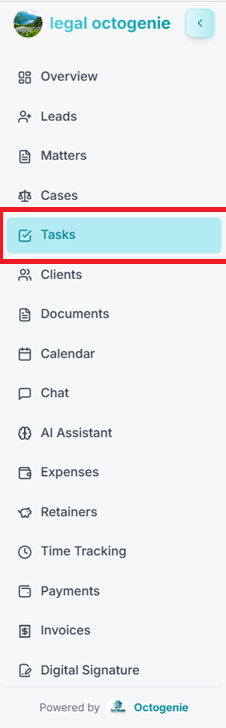
Navigate to Tasks
Log in to your OctoGenie account and click on Tasks from the left-hand menu. This opens the Task Management page.
Opens in a new tab • partner.octogenie.com/
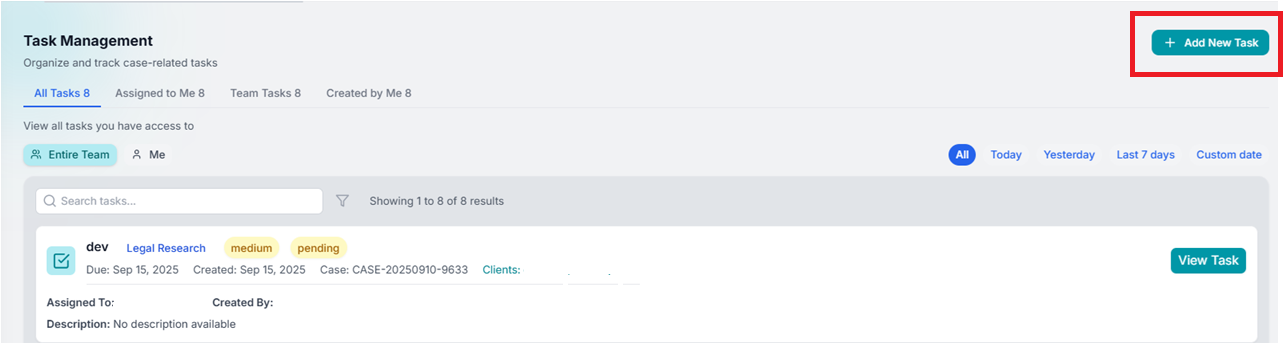
Click on Add New Task
On the top-right corner of the Task Management screen, click the '+ Add New Task' button to open the creation form.
Opens in a new tab • partner.octogenie.com/tasks/new
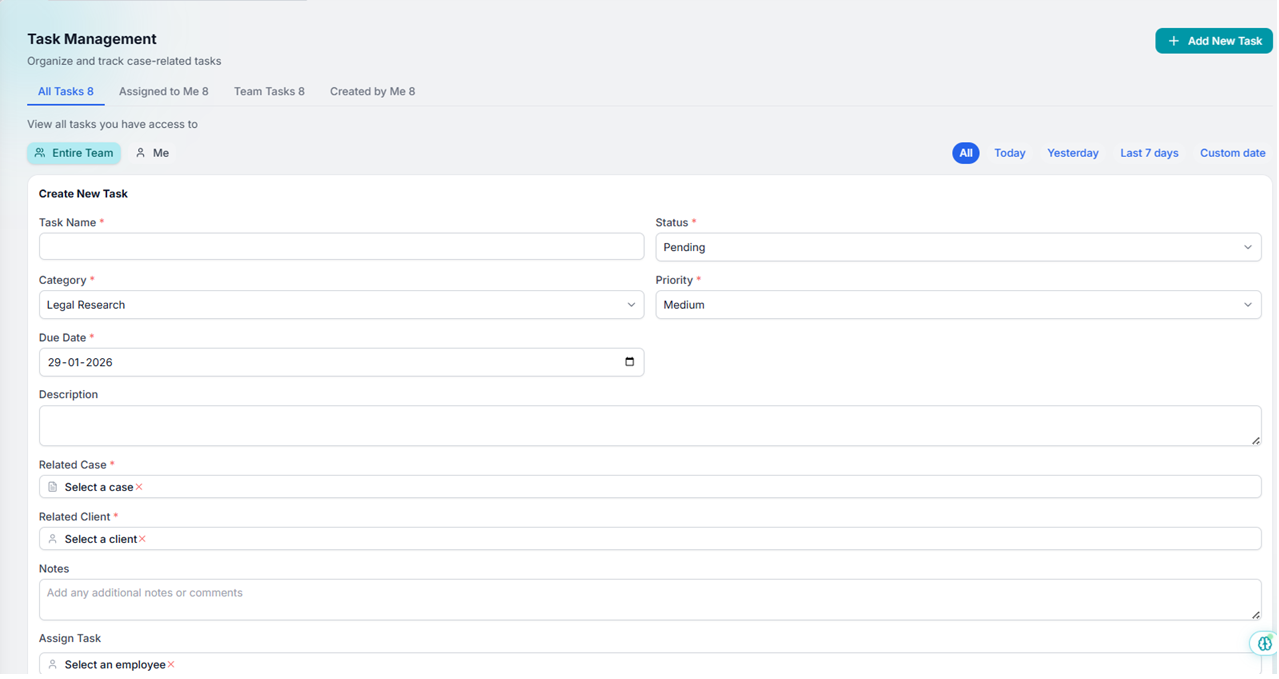
Enter Task Details
Provide clear details: Task Title (e.g., Prepare hearing brief), Category (Case Analysis, Client Meeting, Court Filing), and Priority (Low, Medium, High).
Opens in a new tab • partner.octogenie.com/clients
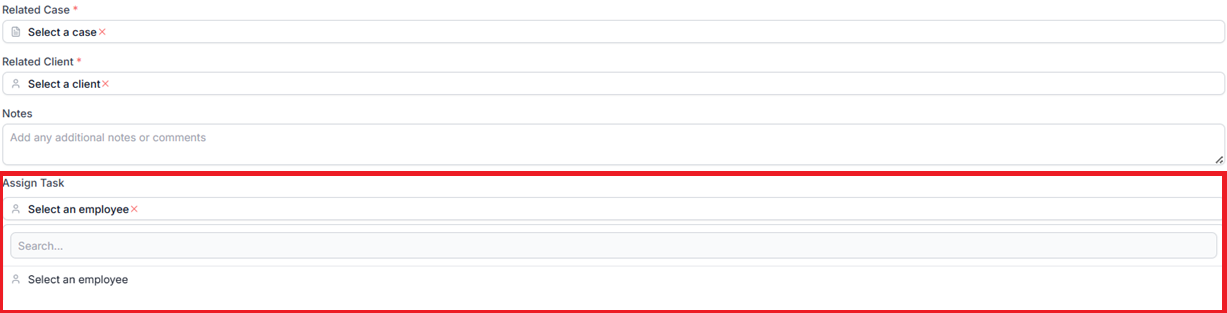
Assign and Link
Select the team member responsible in the 'Assign To' field. Optionally link the task to a specific Case or Client.
Opens in a new tab • partner.octogenie.com/clients
Save the Task
Review all entered details and click on 'Create Task'. The task will be successfully added to your records.
Opens in a new tab • partner.octogenie.com/tasks/new
Task Created Successfully
The task is now visible in the dashboard and assigned users can begin tracking progress.
Assigning Tasks to Team Members
Effective tracking and accountability
Assigning Tasks to Team Members
Delegate case-related tasks to specific team members to ensure clear ownership. Team members must be added to your organization before they can be assigned work.
Open Task Form
Start a new task or open an existing one. Locate the 'Assign Task' field in the form.
Opens in a new tab • partner.octogenie.com/tasks
Select Team Member
Click the dropdown and select the team member's name from the list. Note that team members must already be added to your organization.
Opens in a new tab • partner.octogenie.com/tasks
Complete Assignment
Review all details and click 'Create Task' or 'Update'. The task is now assigned to the selected member.
Opens in a new tab • partner.octogenie.com/tasks/new
Expected Outcome
Clear accountability is established for legal work across the team.
Setting and Updating Due Dates
Prioritize work and meet deadlines
Setting and Updating Due Dates
Define task deadlines so team members can prioritize and complete work on time.
Locate Due Date Field
In the 'Create Task' or 'Edit Task' form, click on the calendar icon within the 'Due Date' field.
Opens in a new tab • partner.octogenie.com/calendar
Select Deadline
Pick the required date from the calendar that appears.
Opens in a new tab • partner.octogenie.com/calendar
Save Task
Review all details and click 'Create Task' or 'Update / Save'.
Opens in a new tab • partner.octogenie.com/tasks/new
Verify View
The newly created task will appear in the Tasks list. You can view it under categories like 'Assigned to Me' or 'Team Tasks'.
Opens in a new tab • partner.octogenie.com/tasks
Expected Outcome
Deadlines are clearly defined, improving firm-wide productivity and management.