Cases
Track and manage your legal cases within the OctoGenie platform. You can manually create cases or import them directly from eCourt.
Creating a Case - Manual Entry
Manually create and register a new legal case
Creating a Case - Manual Entry
Learn how to manually create a legal case when details are not available in eCourts. The Cases module acts as a central workspace to track ongoing, closed, or pending cases from start to finish.
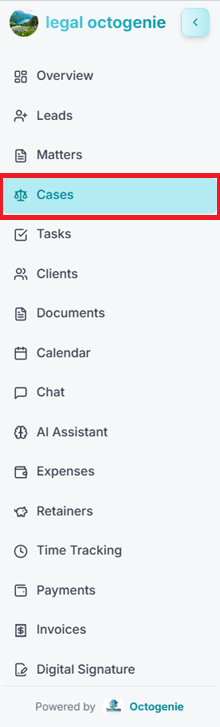
Open Cases Module
Log in to your OctoGenie account and click on 'Cases' from the left-hand menu.
Opens in a new tab • partner.octogenie.com/
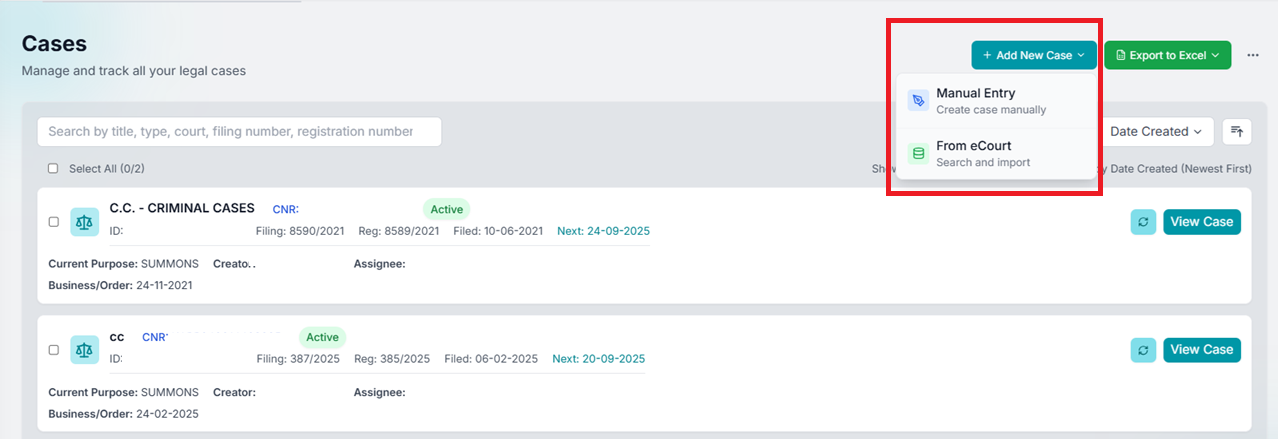
Start New Case Creation
Click the '+ Add New Case' button at the top-right corner and select 'Manual Entry' from the dropdown.
Opens in a new tab • partner.octogenie.com/cases/new
.png&w=3840&q=75)
Select Court Type
Choose the appropriate court type: District Court (for District, State, or Lower Courts) or Supreme Court.
Opens in a new tab • partner.octogenie.com/cases
.png&w=3840&q=75)
Enter Case Details
Fill in the case information manually, upload documents, and assign lawyers. Click 'Create Case' to finalize.
Opens in a new tab • partner.octogenie.com/cases/new
Creating a Case - From eCourt
Import a case from eCourt database
Creating a Case - From eCourt
Search and import case details directly from the eCourts system to reduce manual data entry. Sync status, court records, and parties involved directly from official databases.
Navigate to eCourt Search
From the Cases module, click '+ Add New Case' and select 'From eCourt'.
Opens in a new tab • partner.octogenie.com/cases/new?source=ecourt
Select Court Type
Choose between District Courts (default) or Supreme Court on the search screen.
Opens in a new tab • partner.octogenie.com/cases
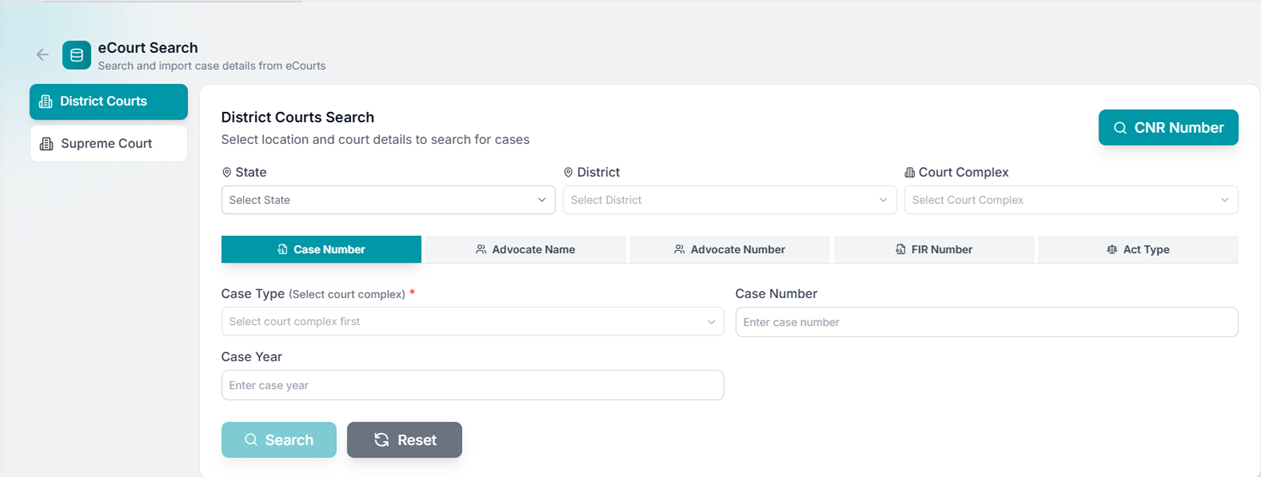
Select Location Details
Select the State, District, and Court Complex. Note that Court Complex selection is mandatory.
Opens in a new tab • partner.octogenie.com/ai-assistant
Choose Search Method
Select a search method: Case Number, Advocate Name/Number, FIR Number, Act Type, or CNR Number.
Opens in a new tab • partner.octogenie.com/cases
Enter Search Details
Enter the required details (e.g., Case Type, Case Number, and Case Year) and click 'Search'.
Opens in a new tab • partner.octogenie.com/cases
View Search Results
The system fetches details from eCourts. Review the displayed information like Case Title and Status.
Opens in a new tab • partner.octogenie.com/cases/new?source=ecourt
Import Case
Select the required case from the results and click 'Import / Create Case'. The system will auto-fill details.
Opens in a new tab • partner.octogenie.com/cases/new
Complete Case Creation
Verify imported details, link to a Client or Matter if required, and click 'Save / Create Case'.
Opens in a new tab • partner.octogenie.com/clients
Expected Outcome
The case is successfully imported and synced with eCourt data for tracking.
Editing Case Details
Keep your case records updated
Go to Cases Section
Navigate to the Cases section from the main menu.
Opens in a new tab • partner.octogenie.com/cases
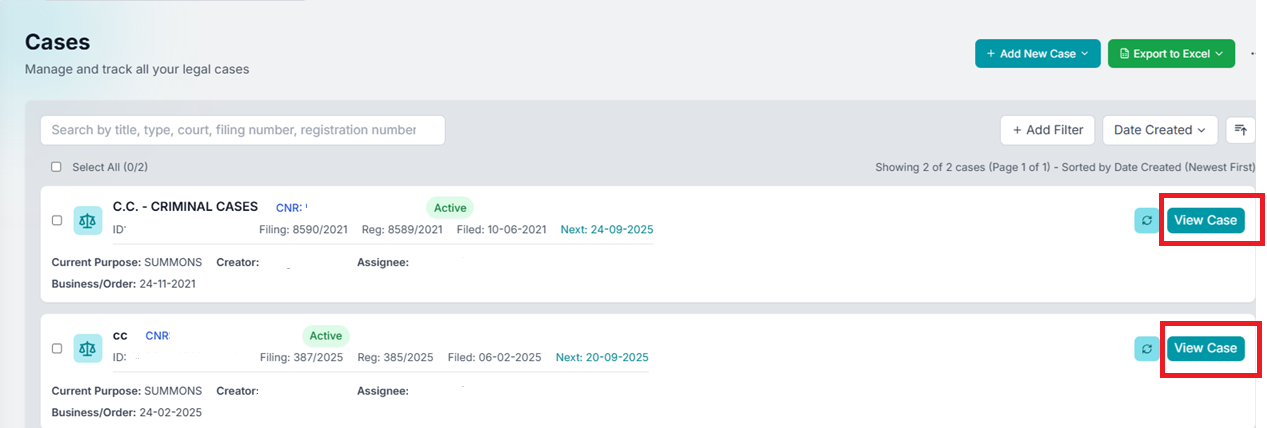
Select Specific Case
Locate and select the case you want to edit from the list.
Opens in a new tab • partner.octogenie.com/cases
View Case
Click on 'View Case' to open the case details page.
Opens in a new tab • partner.octogenie.com/cases
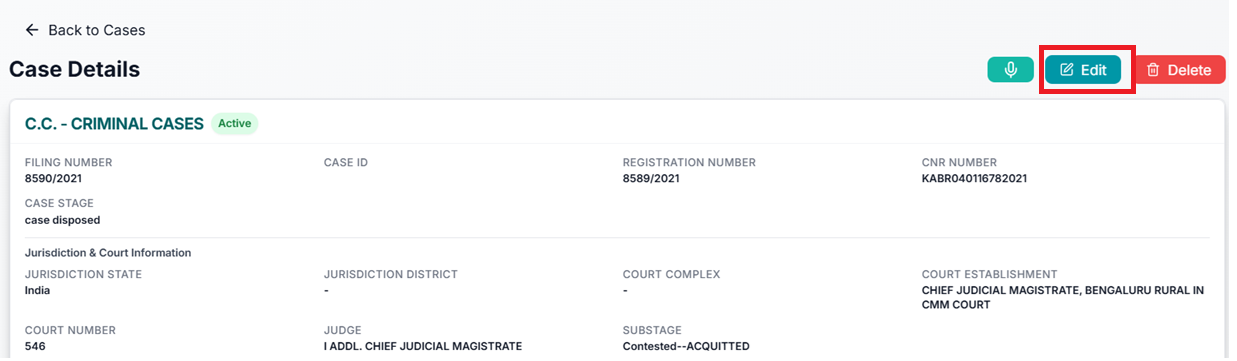
Click Edit Button
Click the 'Edit' button at the top-right of the Case Details page.
Opens in a new tab • partner.octogenie.com/cases
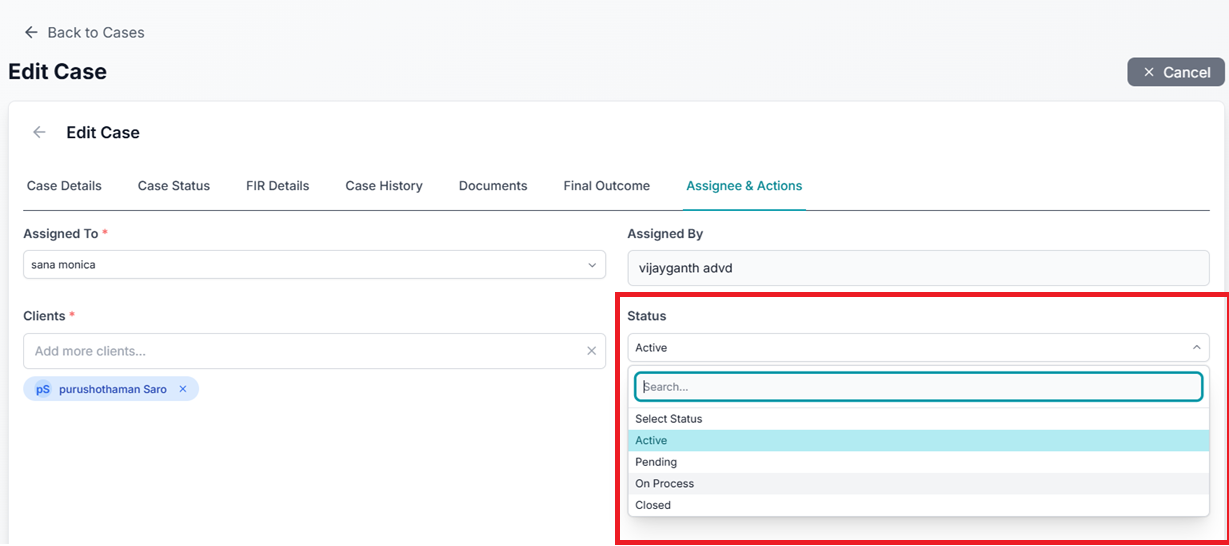
Update and Save
Modify the necessary case details and click 'Update' or 'Save' to apply changes.
Opens in a new tab • partner.octogenie.com/cases
Expected Outcome
Case details are successfully updated in the system.
Marking a Case as Closed
Finalize completed cases
Navigate to Cases
Go to the Cases section from the main menu.
Opens in a new tab • partner.octogenie.com/cases
Select Case
Choose the specific case that you wish to close.
Opens in a new tab • partner.octogenie.com/cases
Open View Case
Click 'View Case' to open details.
Opens in a new tab • partner.octogenie.com/cases
Click Edit
Click the 'Edit' button to allow status modifications.
Opens in a new tab • partner.octogenie.com/cases
Set Status to Closed
In the 'Assignee & Actions' section, update the status field to 'Closed'.
Opens in a new tab • partner.octogenie.com/cases
Expected Outcome
The case is now marked as Closed and updated in your records.
Case Management Complete
Efficiently track the lifecycle of your legal cases from registration to final resolution.