Expenses
Record, track, review, and bill expenses related to cases or matters.
How does the Expenses feature help?
The Expenses feature helps users record, track, review, and bill expenses related to cases or matters. It ensures better financial control, accurate client billing, and smooth approval workflows.
How the Expenses Feature Helps
1. Track All Expenses in One Place:
- Users can record billable and non-billable expenses.
- Expenses are organized under My Expense and Team Expense tabs.
- Helps maintain transparency and avoid missing expense entries.
How to Add an Expense
Record billable or non-billable expenses
Recording a New Expense
Record, track, review, and bill expenses related to cases or matters. This ensures better financial control, accurate client billing, and smooth approval workflows throughout the firm.
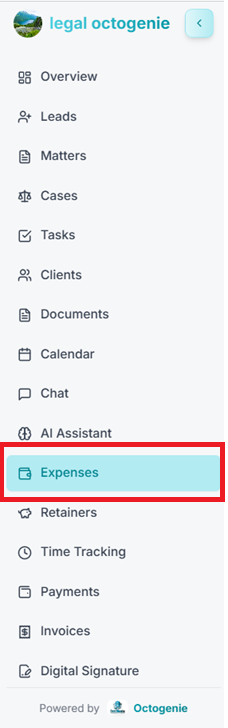
Navigate to Expenses
From the left-hand menu, click on Expenses. The Expenses dashboard will open showing Total Expenses, Billable Expenses, and Pending Approvals.
Opens in a new tab • partner.octogenie.com/expenses
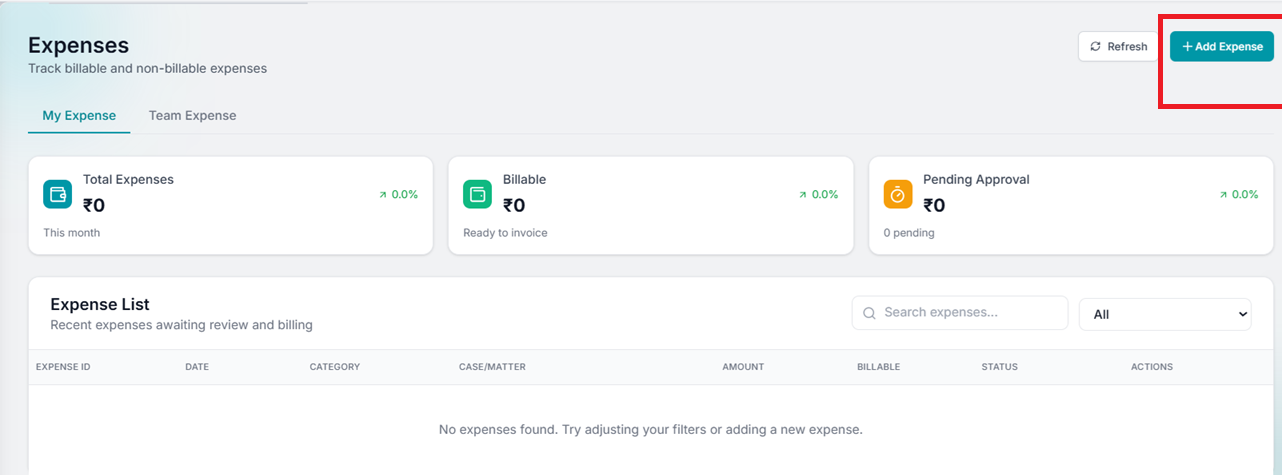
Click on Add Expense
On the top-right corner of the page, click the '+ Add Expense' button.
Opens in a new tab • partner.octogenie.com/expenses/new
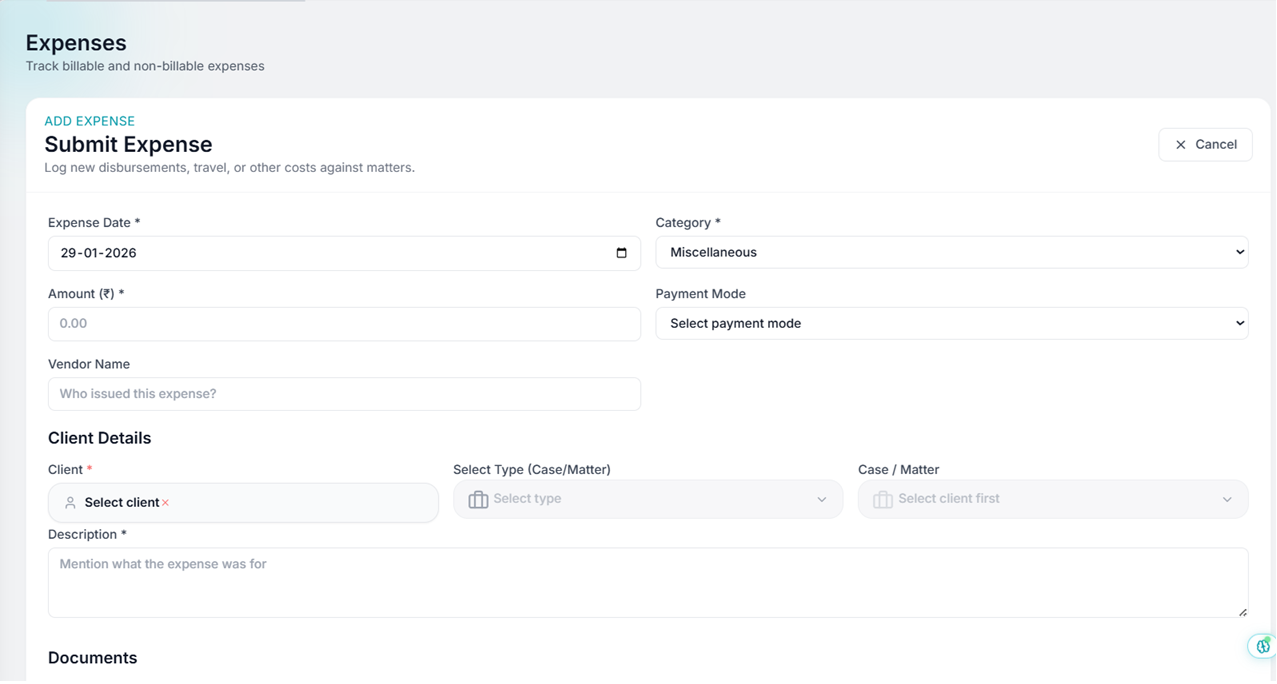
Enter Expense Details
Fill in the required fields: Expense Date, Category (Travel, Filing, Internet, Telephone, etc.), Case/Matter, Amount, Client Details, and Billable status. Add supporting notes in the Description field.
Opens in a new tab • partner.octogenie.com/clients
Upload Supporting Documents
Attach receipts or supporting files if required for approval or records. This step is optional but recommended for faster approvals.
Opens in a new tab • partner.octogenie.com/documents/upload
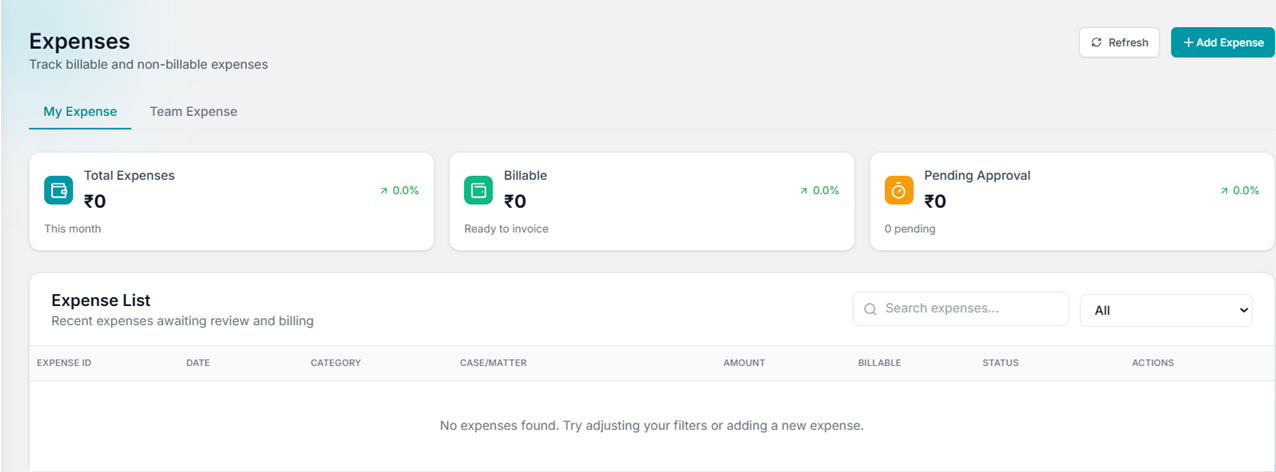
Save and Submit
Click Save / Submit. The expense will appear in the Expense List. If approval is enabled, it will show as 'Pending Approval' until reviewed.
Opens in a new tab • partner.octogenie.com/expenses
Expected Outcome
The expense is successfully recorded and visible under My Expense or Team Expense.
You're all set!
Expense is successfully recorded and can be tracked, approved, and billed to clients if marked as billable.
How to Link Expense to Case
Associate expenses with cases or matters
Linking Expenses to a Case/Matter
Ensure expenses are correctly attributed to cases for transparent billing and financial reporting.
Access Add Expense
Go to Expenses and click Add Expense to open the submission form.
Opens in a new tab • partner.octogenie.com/expenses/new
Select Client
Select the Client under the Client Details section of the form.
Opens in a new tab • partner.octogenie.com/clients
Choose Case or Matter
In the 'Select Type' field, choose either 'Case' or 'Matter'. Then, select the specific record from the dropdown.
Opens in a new tab • partner.octogenie.com/matters
Complete Submission
Fill in the remaining fields and click 'Submit Expense'.
Opens in a new tab • partner.octogenie.com/expenses
Viewing Expenses by Status
Track approvals and reimbursements
Select Expense Type
On the Expenses module, choose 'My Expense' to view your own entries or 'Team Expense' to view team-wide expenses.
Opens in a new tab • partner.octogenie.com/expenses
Locate Status Filter
On the Expense List section, find the 'Status' dropdown near the search bar (defaulted to 'All').
Opens in a new tab • partner.octogenie.com/expenses
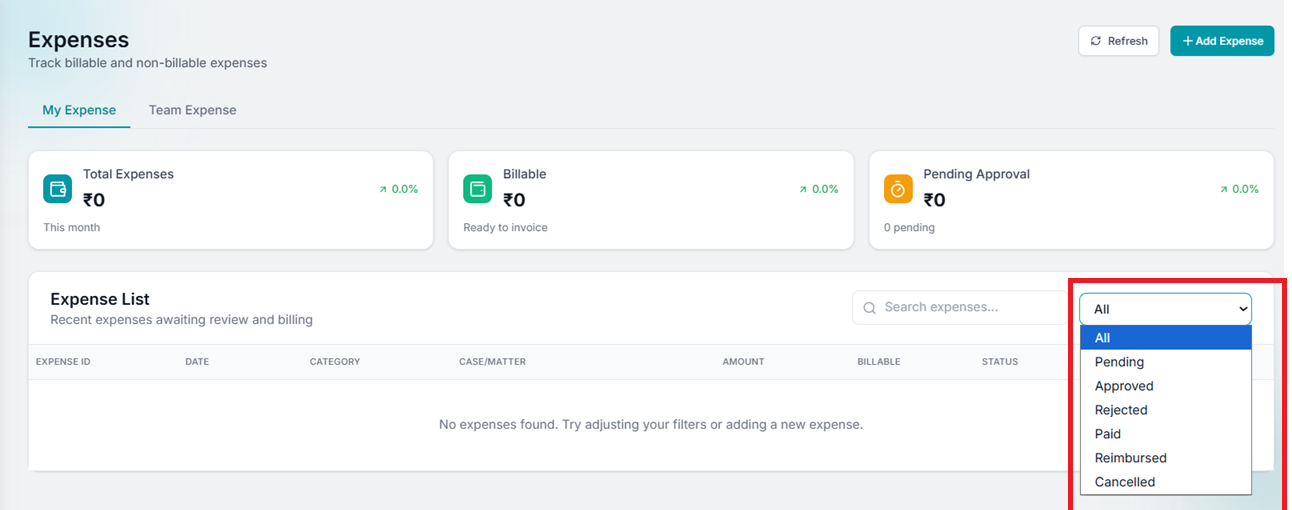
Choose Required Status
Click the dropdown and select the desired status: All, Pending, Approved, Rejected, Paid, Reimbursed, or Cancelled.
Opens in a new tab • partner.octogenie.com/expenses
Review Results
The expense list will automatically update to display only those entries matching your selected status.
Opens in a new tab • partner.octogenie.com/expenses
Expected Outcome
Quickly identify outstanding expenses and manage approval workflows.
Search and Filter Expenses
Find specific expense records quickly
Access Expenses Dashboard
Navigate to the Expenses module from the left-hand menu. The dashboard displays all expense records.
Opens in a new tab • partner.octogenie.com/expenses
Apply Status Filter
Use the Status dropdown to filter by expense status: Pending, Approved, Rejected, Paid, Reimbursed, or Cancelled.
Opens in a new tab • partner.octogenie.com/expenses
Filter by Category
Select expense categories such as Travel, Filing Fees, Internet, Telephone, Printing, or Other to view specific types of expenses.
Opens in a new tab • partner.octogenie.com/expenses
Filter by Date Range
Use the date range picker to view expenses within a specific time period. This helps with monthly reporting and reconciliation.
Opens in a new tab • partner.octogenie.com/expenses
Combine Multiple Filters
Apply multiple filters simultaneously for precise results. For example, filter by 'Pending' status + 'Travel' category + specific date range to find all pending travel expenses for a period.
Opens in a new tab • partner.octogenie.com/expenses
Expected Outcome
Quickly locate specific expense records for review, approval, or reporting purposes.
Expense Management Finalized
Efficiently track, categorize, and approve all firm-wide expenses for better financial oversight.