Matters
Organize and track all your legal matters in one place.
What is a Matter in OctoGenie?
A matter is any legal problem or task that a client brings to a lawyer. The Matter feature in the OctoGenie platform helps you manage, organize, and track all your legal matters in one place.
Examples of legal matters:
- Filing a lawsuit
- Drafting a contract
- Registering a trademark
- Giving legal advice
- Managing a property dispute
Creating a New Matter
Manage, organize, and track legal tasks
Creating a New Matter
A matter is any legal problem or task a client brings to a lawyer. The Matter feature helps you manage everything in one place, including filing lawsuits, drafting contracts, registering trademarks, and giving legal advice.
.png&w=3840&q=75)
Login and Navigation
Log in to your OctoGenie account and click on 'Matters' from the left-hand menu.
Opens in a new tab • partner.octogenie.com/
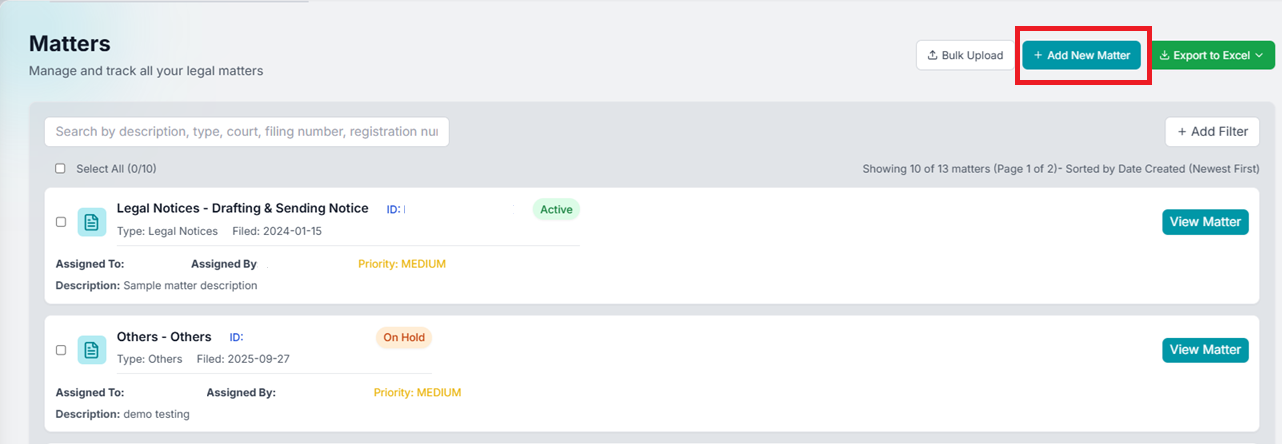
Add New Matter
On the top-right side of the page, click the '+ Add New Matter' button.
Opens in a new tab • partner.octogenie.com/matters/new
.png&w=3840&q=75)
Provide Matter Details
On the Create New Matter form, click on 'Matter Details' to provide the basic information about the matter.
Opens in a new tab • partner.octogenie.com/matters
Add Parties & Contacts
Click on the 'Parties & Contacts' button to add the parties involved and their contact details.
Opens in a new tab • partner.octogenie.com/matters
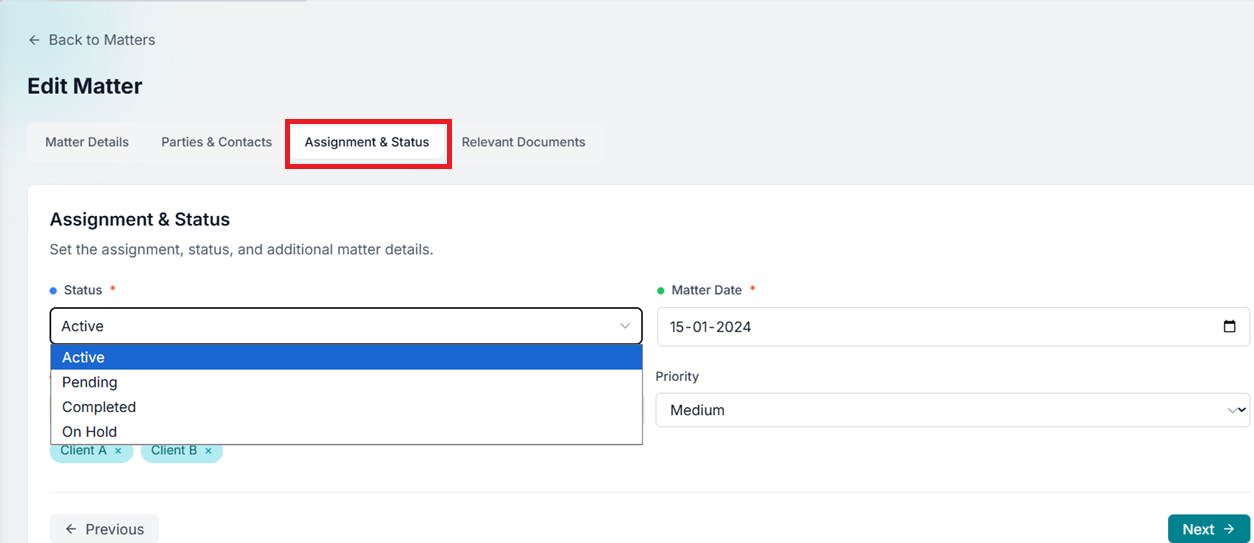
Set Assignment & Status
Set the assignment, status, and additional matter details by clicking on the 'Assignment & Status' section.
Opens in a new tab • partner.octogenie.com/matters
Upload Relevant Documents
Click on the 'Relevant Documents' section to upload files related to this matter (Optional).
Opens in a new tab • partner.octogenie.com/matters
.png&w=3840&q=75)
Finalize Matter Creation
Click on the 'Create Matter' button at the right bottom to finalize.
Opens in a new tab • partner.octogenie.com/matters/new
Linking a Client to a Matter
Associate clients with their legal tasks
Open Matters
Go to the Matter section from the main menu.
Opens in a new tab • partner.octogenie.com/matters
Access Matter
Open the matter to which you want to add a client.
Opens in a new tab • partner.octogenie.com/clients
Go to Assignment & Status
Click on the 'Assignment & Status' tab.
Opens in a new tab • partner.octogenie.com/matters
Select Client
From the 'Add Client' field, select the required client from the list.
Opens in a new tab • partner.octogenie.com/clients/new
Updating Matter Status
Track the progress of your matters
Navigate to Matters
Go to the Matter section from the main menu.
Opens in a new tab • partner.octogenie.com/matters
Open Relevant Matter
Open the matter to which you want to update the status.
Opens in a new tab • partner.octogenie.com/matters
Go to Assignment & Status
Click on the 'Assignment & Status' section.
Opens in a new tab • partner.octogenie.com/matters
Update Status field
Update the status from the status field (e.g., Active, Pending, Completed, On Hold).
Opens in a new tab • partner.octogenie.com/matters
Expected Outcome
The matter status is updated instantly throughout the system.
Editing a Matter
Keep matter information up-to-date
Go to Matters
Navigate to the Matters section from the main menu.
Opens in a new tab • partner.octogenie.com/matters
Select Matter
Go to the specific matter you want to edit.
Opens in a new tab • partner.octogenie.com/matters
Open Matter Details
Click on 'View Matter' to open the matter details page.
Opens in a new tab • partner.octogenie.com/matters
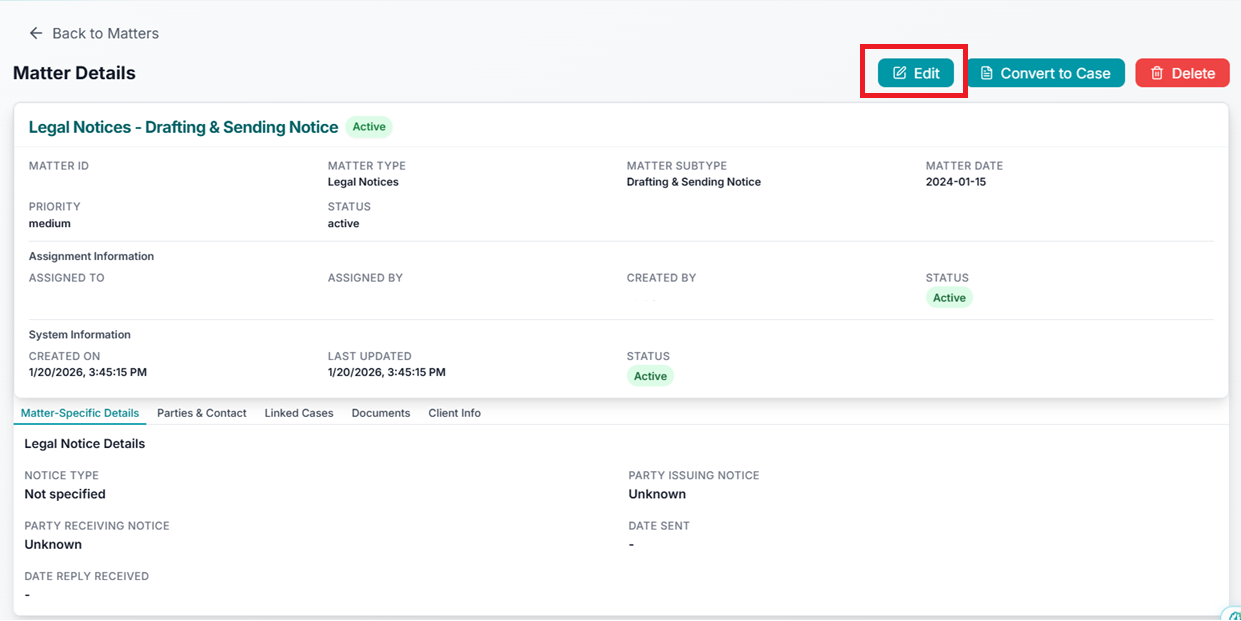
Click Edit Button
Click the Edit button to enable changes to the matter information.
Opens in a new tab • partner.octogenie.com/matters
Update and Save
Update the required matter details and save the changes.
Opens in a new tab • partner.octogenie.com/matters
Expected Outcome
The matter record is accurately updated with the new information.
Bulk Uploading Matters
Onboard large volumes of data efficiently
Navigate to Matters Module
Log in and click on Matters from the left-hand navigation panel.
Opens in a new tab • partner.octogenie.com/
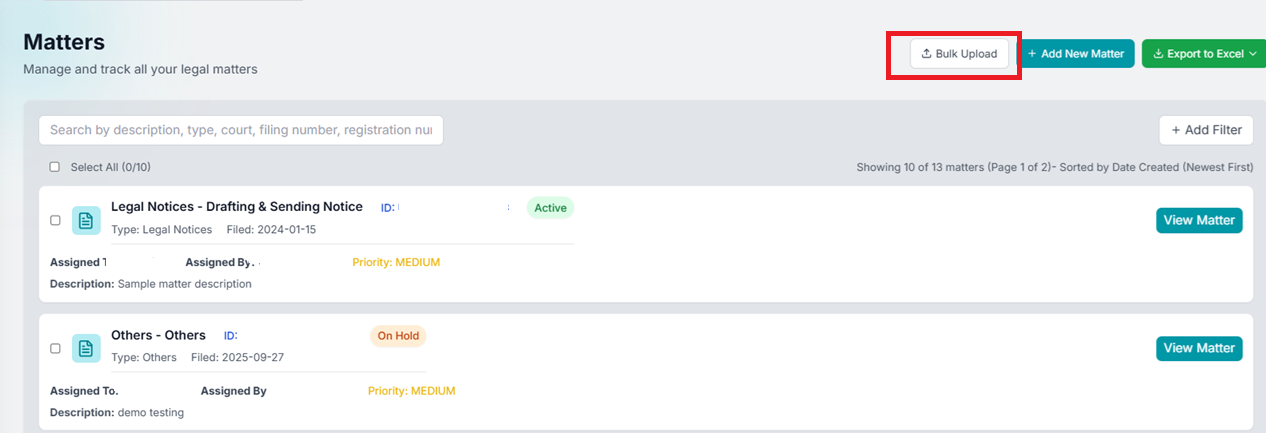
Click on Bulk Upload
On the top-right corner of the Matters page, click the 'Bulk Upload' button.
Opens in a new tab • partner.octogenie.com/matters
.png&w=3840&q=75)
Select Download Template
Click on the 'Bulk Upload' option and select 'Download Template' to download the sample Excel file.
Opens in a new tab • partner.octogenie.com/matters
Download Excel Template
Download the provided Excel template which contains predefined columns required for matter creation.
Opens in a new tab • partner.octogenie.com/matters
Fill in Matter Details
Enter details for each matter in a separate row. Ensure all mandatory fields are filled correctly following the data format.
Opens in a new tab • partner.octogenie.com/matters
Upload the Completed File
Save the Excel file and upload it using the Bulk Upload option.
Opens in a new tab • partner.octogenie.com/matters
Validate and Submit
The system validates the data. If there are errors, correct them and re-upload. Once successful, submit the file.
Opens in a new tab • partner.octogenie.com/matters
Confirmation
Successfully uploaded matters will be created automatically and appear in the Matters list.
Opens in a new tab • partner.octogenie.com/matters
Expected Outcome
Multiple matters are created efficiently and ready for management.
Exporting Matters to Excel
Offline review and reporting
Navigate to Matters Section
From the left-side menu, click on Matters.
Opens in a new tab • partner.octogenie.com/matters
Review or Filter (Optional)
Use the search bar or filters to find specific matters you want to export. Select individual matters using checkboxes if needed.
Opens in a new tab • partner.octogenie.com/matters
.png&w=3840&q=75)
Click Export to Excel
On the top-right corner of the Matters page, click the 'Export to Excel' button.
Opens in a new tab • partner.octogenie.com/matters
Download the Excel File
The system automatically generates and downloads the Excel file containing the matter details.
Opens in a new tab • partner.octogenie.com/matters
Open and Review
Open the downloaded file to view information such as Matter ID, Title, Status, Priority, and more.
Opens in a new tab • partner.octogenie.com/matters
Expected Outcome
Matters are exported into an Excel file for easy sharing and documentation.
Using Filters in Matters
Quickly find and organize matters
Go to the Matters Module
Click on Matters from the left-hand menu.
Opens in a new tab • partner.octogenie.com/matters
.png&w=3840&q=75)
Click on Add Filter
On the top-right of the Matters list, click '+ Add Filter'.
Opens in a new tab • partner.octogenie.com/matters
Select a Filter Type
Choose from options like Status, Matter Type, Priority, Assigned To, Filing Date Range, or Created Date Range.
Opens in a new tab • partner.octogenie.com/matters
Apply Filter Criteria
Select or enter the required values for the chosen filter. Multiple filters can be applied at once.
Opens in a new tab • partner.octogenie.com/matters
View Filtered Results
The list updates instantly to display only the matters matching your criteria.
Opens in a new tab • partner.octogenie.com/matters
Modify or Clear Filters
Change values or remove filters to return to the complete Matters list.
Opens in a new tab • partner.octogenie.com/matters
Expected Outcome
Efficiently manage matters by viewing only the most relevant records.