Documents
Store, organize, and manage all your legal files in one place.
What is the Documents Module?
The Documents module in OctoGenie allows you to store, organize, and access all legal files related to your cases, matters, and clients. It provides a centralized location for document management, ensuring easy access and organization.
How to Upload Documents
Add documents to the system
Uploading Documents
Follow these steps to upload documents to your central document repository.
Navigate to Documents Section
Navigate to the Documents section from the left-side menu, or access documents from within a specific Case or Matter.
Opens in a new tab • partner.octogenie.com/matters
Click Upload Document
Click on the 'Upload Document' or 'Add Document' button.
Opens in a new tab • partner.octogenie.com/documents/upload
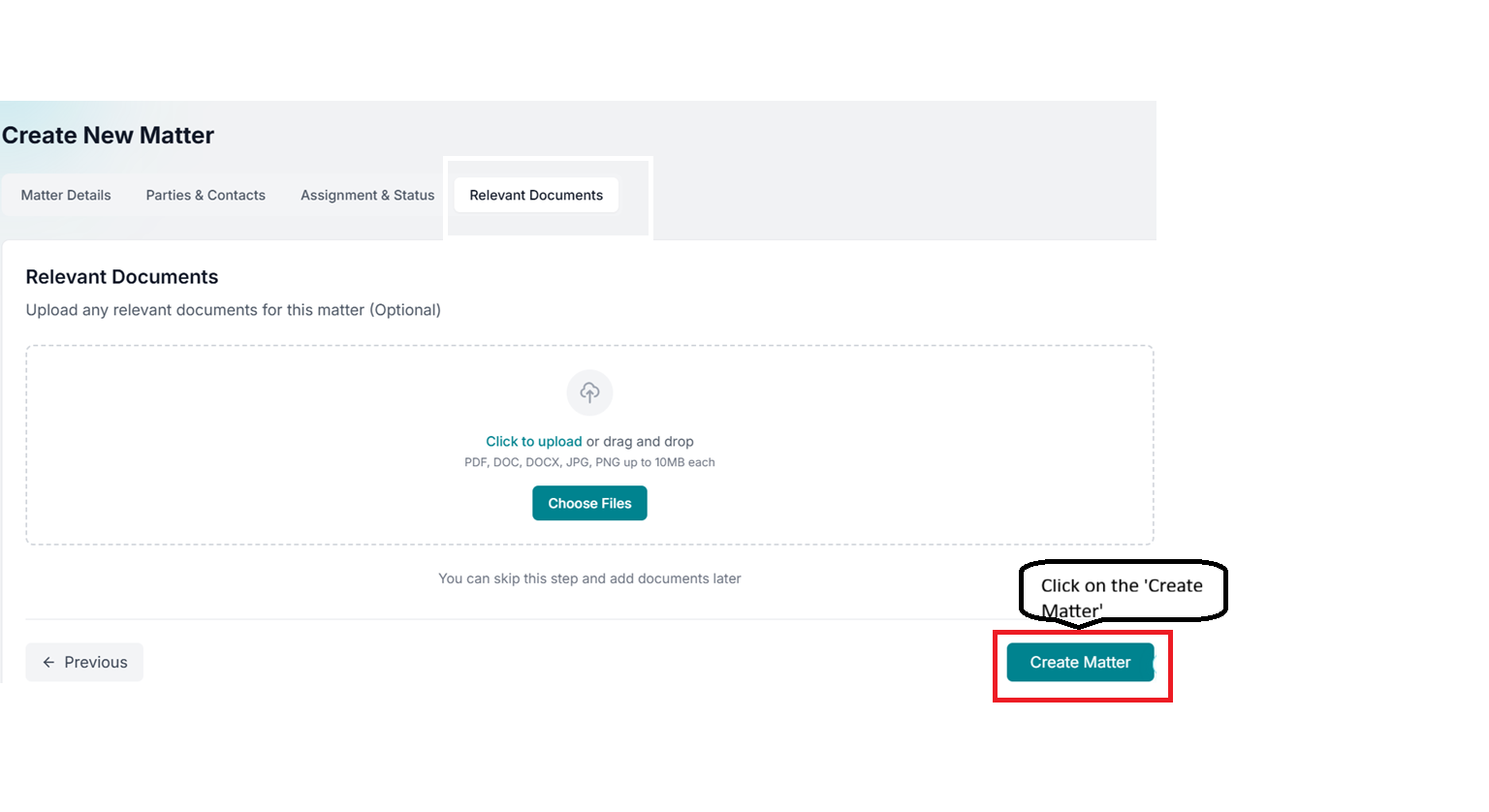
Select File
Select the file from your device, or drag and drop the file into the upload area.
Opens in a new tab • partner.octogenie.com/documents
Add Document Details
Add document details such as title, description, and category (if applicable).
Opens in a new tab • partner.octogenie.com/documents
Link to Case/Matter/Client
Link the document to a specific Case, Matter, or Client (if applicable).
Opens in a new tab • partner.octogenie.com/clients
Complete Upload
Click 'Upload' or 'Save' to complete the upload.
Opens in a new tab • partner.octogenie.com/documents
How to Link Documents to Matters and Cases
Associate documents with cases and matters
Linking Documents to Matters and Cases
Organize documents by linking them to relevant cases and matters
Select Document During Upload
When uploading a document, you can select the Case or Matter from the dropdown menu during the upload process.
Opens in a new tab • partner.octogenie.com/matters
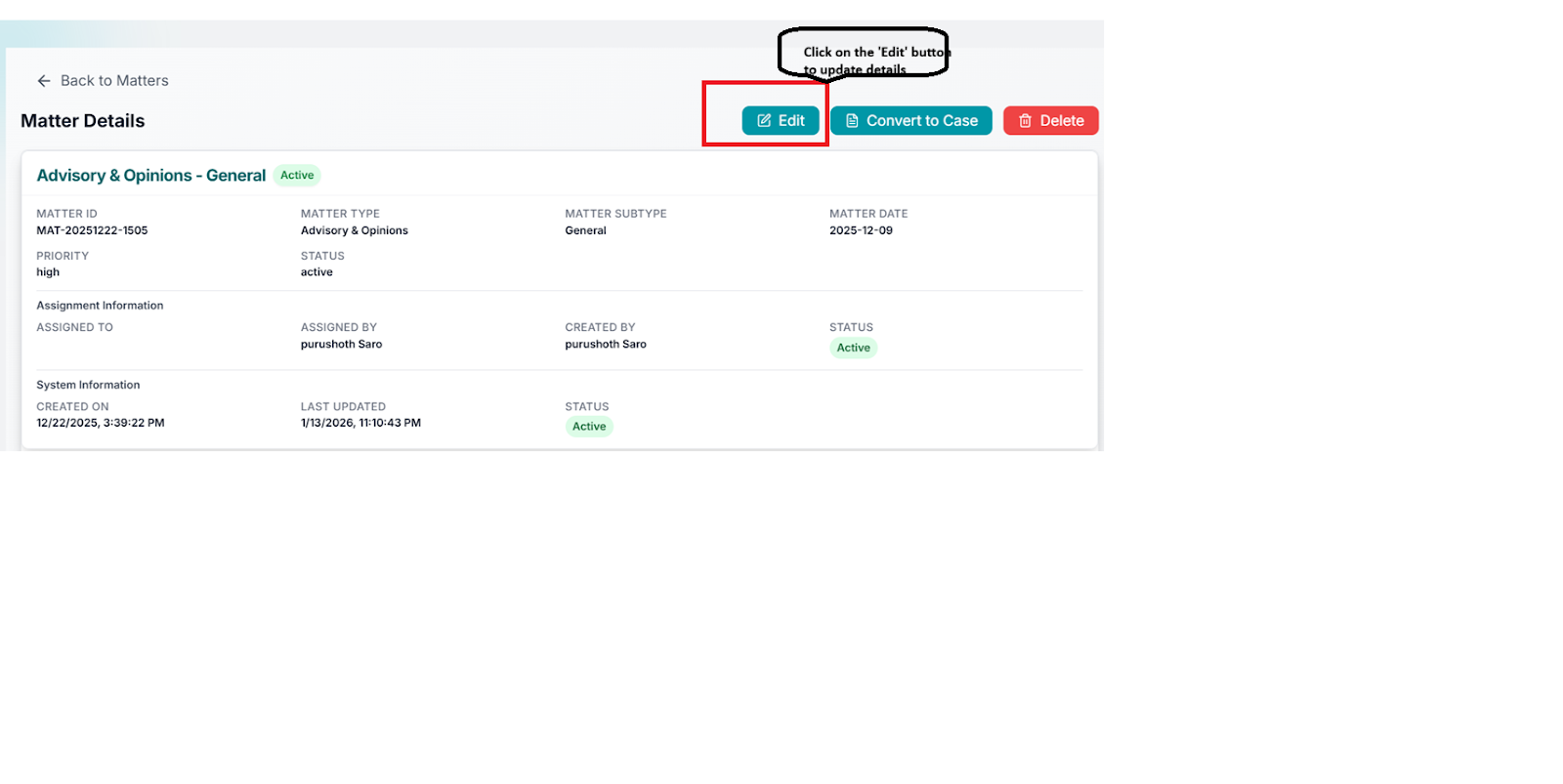
Edit Existing Document
Alternatively, open an existing document and click 'Edit' to add or change the linked Case or Matter.
Opens in a new tab • partner.octogenie.com/matters

Link to Multiple Cases/Matters
You can link a single document to multiple Cases or Matters if needed.
Opens in a new tab • partner.octogenie.com/matters
.png&w=3840&q=75)
Save Changes
Save the changes. The document will now appear in the Documents tab of the linked Case or Matter.
Opens in a new tab • partner.octogenie.com/matters
Pro Tip
- Always link documents to the relevant Case or Matter during upload to maintain proper organization and easy retrieval.
Expected Outcome
Document is successfully linked and appears in the Documents tab of the linked Case or Matter.