Clients
Manage client information, profiles, and documents in one centralized location.
How to Add a New Client
Register and onboard a new client into the OctoGenie platform
Adding a New Client
Follow these steps to register a new individual or corporate client. The platform allows you to track personal details, KYC, addresses, and financial records in one place.
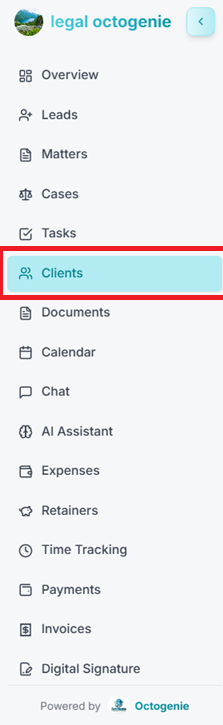
Go to Clients Section
Log in to your OctoGenie account. From the left-hand menu, click on Clients. The Clients page will open.
Opens in a new tab • partner.octogenie.com/
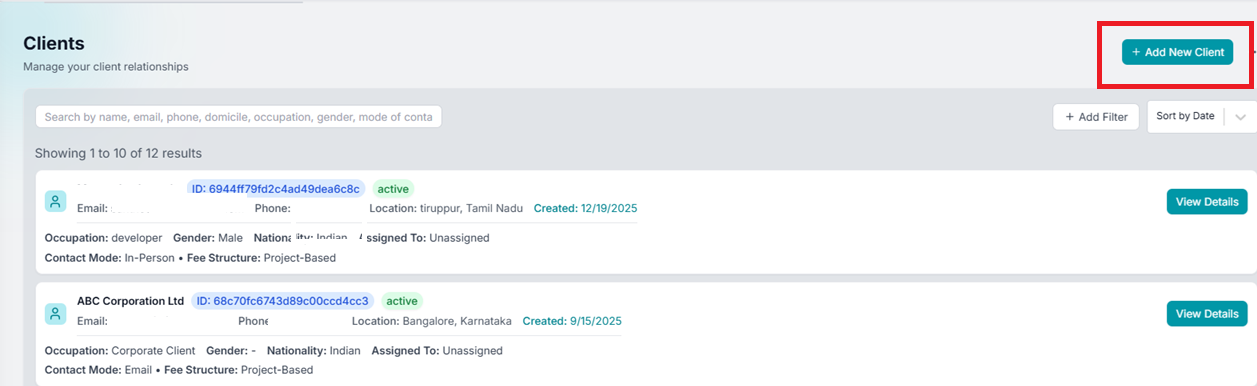
Click on Add New Client
Click the + Add New Client button at the top right corner. The Client Creation Form will open under the Personal Details tab.
Opens in a new tab • partner.octogenie.com/clients/new
Select Client Type
Select whether the client is an Individual or a Corporate/Organization.
Opens in a new tab • partner.octogenie.com/clients
Enter Personal Details
Provide necessary personal details such as name, contact information, and address. Fill in all mandatory fields marked with an asterisk (*).
Opens in a new tab • partner.octogenie.com/ai-assistant
Click on 'Next Button'
After filling in the details, click on the 'Next' button at the bottom of the page to proceed to the next section.
Opens in a new tab • partner.octogenie.com/clients
Complete Additional Tabs
Continue filling details in other tabs if necessary: Address, KYC Validation, Documents, Client Onboarding, Internal Notes, and Financial Records.
Opens in a new tab • partner.octogenie.com/clients
.png&w=3840&q=75)
Client Record Created
Once all details are updated, click on the 'Create Client' button at the bottom right. The client will be successfully created and appear in the Clients List.
Opens in a new tab • partner.octogenie.com/clients
How to Edit Client Details
Update existing client information
Editing Client Details
Learn how to update existing client records in OctoGenie.
Go to Clients Section
Navigate to the Clients section from the main menu.
Opens in a new tab • partner.octogenie.com/clients
Locate Client
Go to the specific client you want to edit. You can search for the client using the search bar.
Opens in a new tab • partner.octogenie.com/clients
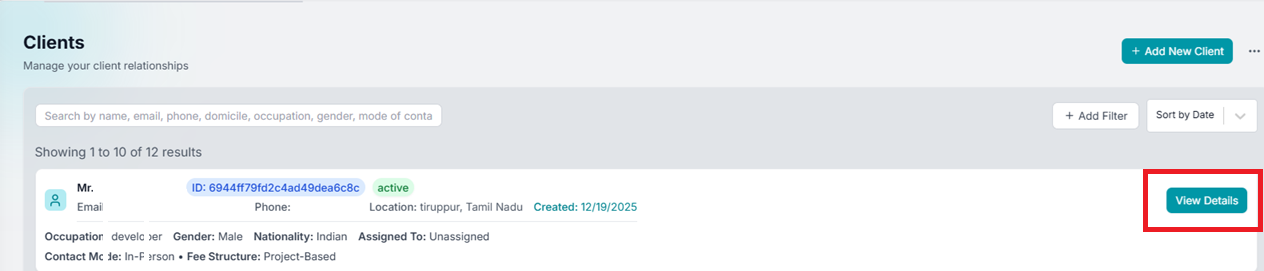
Click on View Details
Click on 'View Details' to open the client's profile and details.
Opens in a new tab • partner.octogenie.com/clients
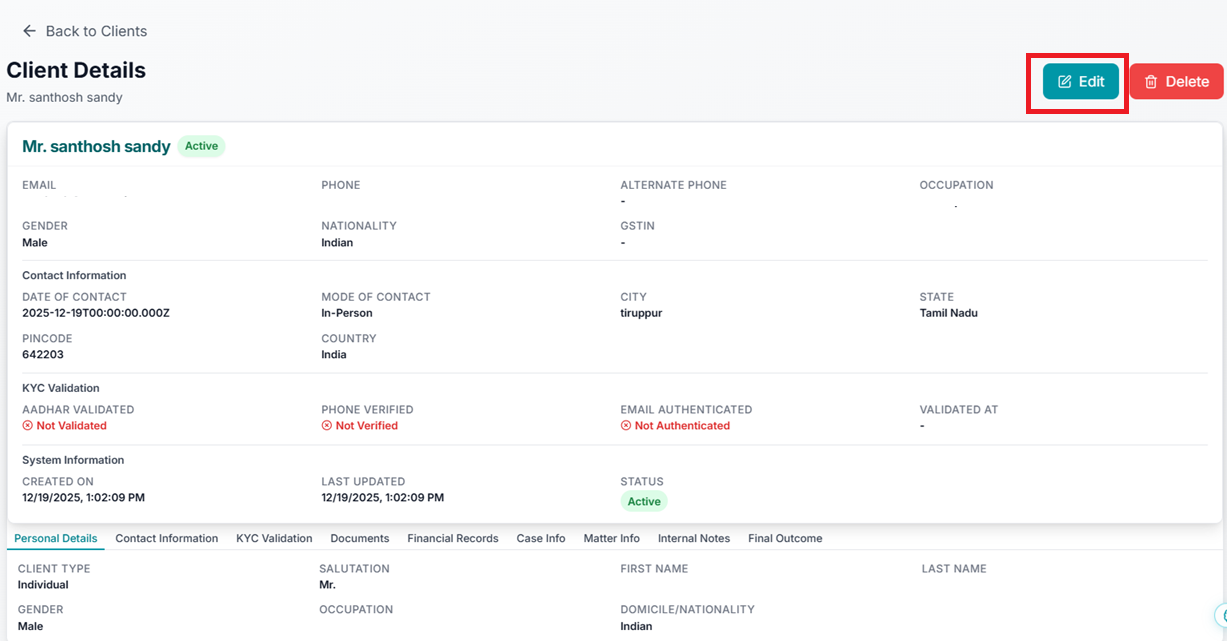
Click the Edit Button
Click the Edit button to enable modification of the record.
Opens in a new tab • partner.octogenie.com/clients
Update and Save
Update the required details and save the changes.
Opens in a new tab • partner.octogenie.com/clients
Expected Outcome
Client details are successfully updated.
Uploading Client Documents
Add documents to an existing client profile
Uploading Documents for Client
How to upload and manage documents for a client after the profile has been created.
Navigate to Clients
Go to the Clients section from the left-side menu.
Opens in a new tab • partner.octogenie.com/clients
Select Client
Select the client for whom documents need to be uploaded.
Opens in a new tab • partner.octogenie.com/clients
Click on Documents Tab
Click on the Documents tab within the client's profile.
Opens in a new tab • partner.octogenie.com/clients
Upload File
Under Document Upload, click 'Upload a file' or drag and drop the document into the upload area.
Opens in a new tab • partner.octogenie.com/documents/upload
Choose Document
Choose the required document from your system.
Opens in a new tab • partner.octogenie.com/documents
Verify Upload
Verify that the file is successfully uploaded to the platform.
Opens in a new tab • partner.octogenie.com/clients
Proceed
Click Next to proceed to the next step. Note that uploading documents is optional and multiple documents can be uploaded one by one.
Opens in a new tab • partner.octogenie.com/documents
How to Delete a Client Record
Permanently remove a client from the system
Deleting a Client
Steps to permanently remove a client record from the OctoGenie platform.
Log in to OctoGenie
Access your account with your credentials.
Opens in a new tab • partner.octogenie.com/clients
Go to Clients Section
From the left-side menu, click on Clients.
Opens in a new tab • partner.octogenie.com/clients
Open Client Details
Search for the client using the search bar or click 'View Details' from the client list.
Opens in a new tab • partner.octogenie.com/clients
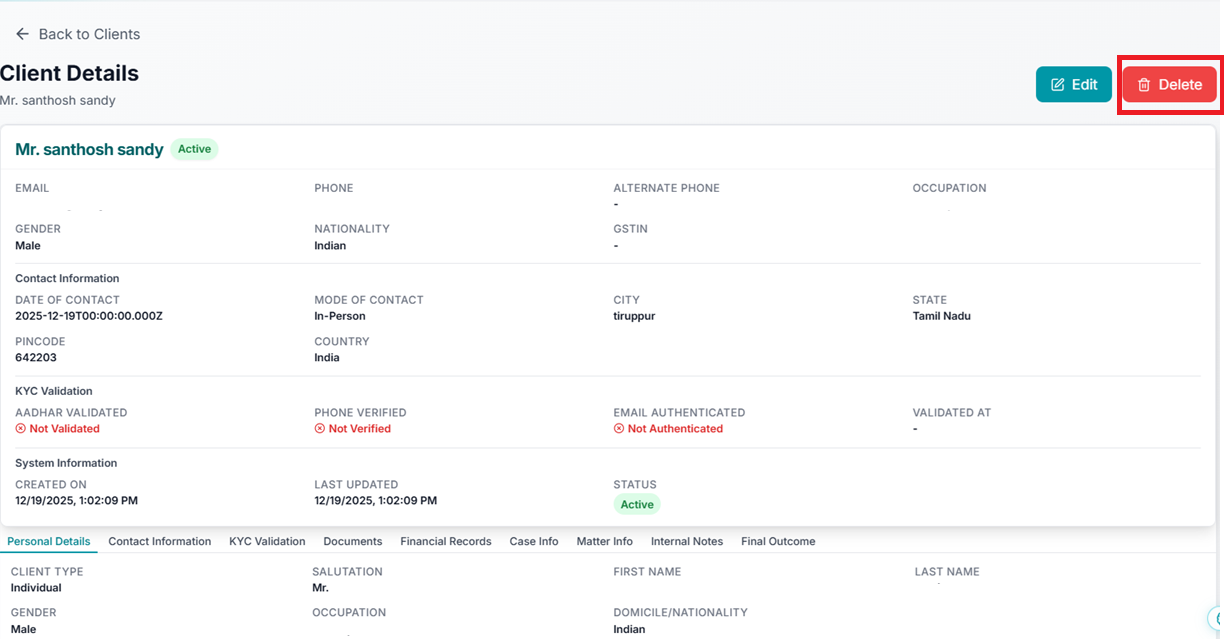
Click on Delete
On the top-right corner of the Client Details page, click the Delete button (red button).
Opens in a new tab • partner.octogenie.com/clients
Confirm Deletion
A confirmation pop-up will appear. Click Confirm / Yes to proceed with deletion.
Opens in a new tab • partner.octogenie.com/clients
Client Deleted
The client will be permanently removed. You will be redirected back to the Clients List, and the deleted client will no longer appear.
Opens in a new tab • partner.octogenie.com/clients
Expected Outcome
The client record is completely removed from the platform.